
Choose the right record before entering the cost
Start with what the receipt or statement represents. DriveFive has dedicated records for fuel, electric charging and service work. Use Expenses for other vehicle costs such as parking, insurance, registration, tolls, tires, financing and similar running costs. Choosing the right record type keeps the amount beside the details that explain it.
| Purchase | Where to record it |
|---|---|
| Gasoline or diesel fill-up | Fuel record, with litres and odometer when available |
| EV charging session | Charging record, with kWh and charging details |
| Completed maintenance or repair | Service record, with work performed and odometer |
| Parking, toll, insurance or registration | Expense record under the matching vehicle |
| One combined amount that cannot be separated | One record with a note explaining what the total includes |
The distinction matters because recorded totals reflect the entries you save. If a service invoice is recorded as both Service and Expenses, or parking is included in a charging total and entered again, the same money can appear twice. If a cost has not been entered, it remains missing rather than becoming zero.
Collect the details supported by the source
Use the receipt, invoice, card statement or registration document that was available when you paid. Confirm the vehicle first, especially when your household or business uses more than one. Then capture the date, a useful description, category, total paid and vendor. Add notes when the purpose or an unusual bundled charge will not be obvious later.
- Record the actual CAD total paid, not a pre-tax subtotal or an estimate.
- Use the tax field only for tax already included in that total; DriveFive does not add it again.
- Copy the included-tax amount from the source when it is stated clearly instead of trying to reconstruct it from memory.
- Keep each cost with the vehicle it belongs to and use a specific description such as “Downtown parking” or “Annual registration.”
- Leave unsupported details out rather than inventing a vendor, amount, tax or business purpose.
Add a vehicle expense in DriveFive
- While parked, open More and choose Expenses.
- Tap Add expense and select the vehicle that incurred the cost.
- Enter the date, a clear description and the matching category.
- Enter the total actually paid in CAD. If the receipt states tax already included, add that amount in the optional tax field.
- Add the vendor and notes when they will help identify or explain the purchase.
- Expand Receipt & more details, then attach a clear photo or existing file when useful.
- Review the vehicle, date, total and attachment, save the entry, and reopen View more to confirm the result.
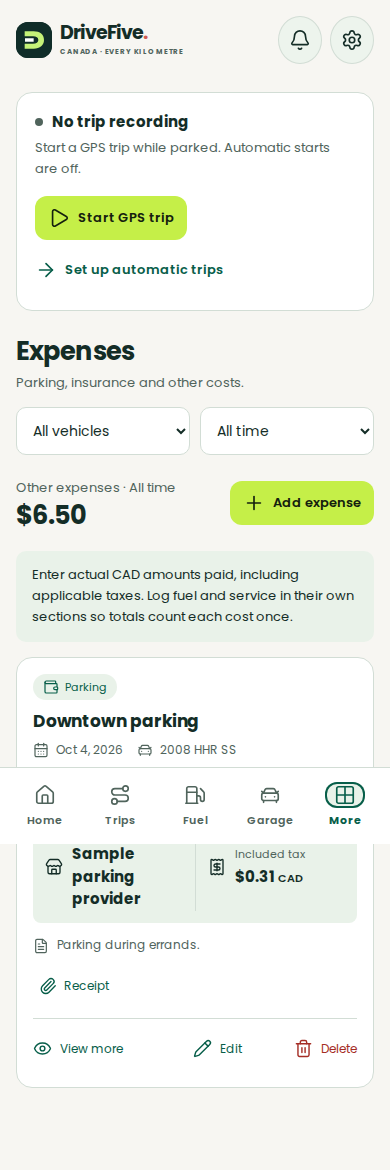
The expense card shows the description, category, date, vehicle, total, vendor and included tax. The attached receipt and full notes remain available under View more. A descriptive entry is much easier to check than a row labelled only “car” or “other.”
Worked example: four costs for one vehicle
Suppose one vehicle has four sample non-fuel costs during November 2026. The supporting records show $6.50 for downtown parking, $7.25 for a toll, $120.00 for registration and $132.40 for insurance. Enter four records because they occurred on different dates and have different sources.
| Description | Category | Total paid |
|---|---|---|
| Downtown parking | Parking | $6.50 CAD |
| Highway toll | Tolls | $7.25 CAD |
| Annual vehicle registration | Registration | $120.00 CAD |
| Monthly vehicle insurance | Insurance | $132.40 CAD |
The recorded non-fuel total for this example is $266.15 CAD. If the parking receipt identifies $0.31 as tax included in its $6.50 total, enter $6.50 as the expense and $0.31 as included tax. Do not add the tax again to make $6.81. The other entries should use only the included-tax amounts actually shown on their own documents.
This total is only the four records in the example. It is not the vehicle's complete cost for the month unless every relevant fuel, charging, service and other expense was also recorded.
Prevent duplicate and bundled costs
Read the final total on the source before creating another record. A public charging receipt may show electricity and parking separately, or it may present one combined total. A repair invoice may include parts, labour and shop supplies. The goal is to preserve the amount actually paid without pretending that every component was a separate purchase.
- When charging and parking are billed separately, keep the kWh charge in Charging and the parking fee in Expenses.
- When one indivisible amount already includes charging and parking, record it once and explain the bundle in the note.
- When a service record already contains the complete repair invoice total, do not repeat the same total as an Expense.
- When a receipt contains unrelated household items, use only the clearly supported vehicle amount; do not guess an allocation.
- When a card statement shows a pending and later posted charge, record the final real purchase once rather than treating both lines as expenses.
Keep receipts readable and connected to the entry
Attach the complete receipt rather than a crop that removes the date, vendor or total. After attaching it, open the saved copy and check that small print and amounts remain readable. DriveFive keeps the attachment locally with the vehicle record, so retain the original paper or source file separately whenever its original quality or legal value matters.
- Match the receipt to the correct vehicle and expense before saving.
- Compare its date, vendor, total and included tax with the fields you entered.
- Add a short note for a business purpose, bundle or correction that will otherwise be unclear.
- Open View more after saving and confirm that the intended attachment is present.
- Keep the original document according to the recordkeeping requirements that apply to you.
The Canada Revenue Agency says business vehicle expenses must be supported by records and receipts, and that mixed personal and business use requires an allocation based on the applicable rules. It also treats business-related parking separately in its calculation guidance. These rules do not make every recorded vehicle cost deductible; consult the current rules for your own employment or business situation.
Review one period and export the expense records
At the end of the month, filter Expenses to the intended vehicle and dates. Look for duplicate totals, vague descriptions, wrong vehicles and receipts that do not match their entries. If you use several vehicles for business, the CRA advises keeping and calculating each vehicle's records separately; separate DriveFive records make that review easier.
- Open Expenses and select one vehicle and the period you want to check.
- Compare the cards with receipts, invoices and statements, and correct supported errors.
- Open More → Reports & exports and select the same vehicle and date range.
- Choose Expense records, then create CSV for row-by-row data or PDF for a formatted report.
- Open the saved file and confirm the dates, categories, totals and number of entries before relying on it.
The on-screen report preview may show up to 20 rows per section, while the generated CSV or PDF contains every matching expense record for the chosen scope. Blank or missing information stays unknown instead of becoming zero. A report helps you review or share the saved entries; it is not a tax filing and does not prove that the log is complete.
A reliable routine is simple: use the correct record type, enter the actual total once, attach the source, and review one vehicle and period at a time. That produces a Canadian vehicle expense log whose numbers can be traced back to real purchases.
USE IT IN DRIVEFIVE
Your next step
Open the matching guide for the exact steps in the app.
Get DriveFiveSources & app documentation
- Canada Revenue Agency — Motor vehicle expenses
- Agence du revenu du Canada — Calculer vos dépenses relatives aux véhicules à moteur
- DriveFive — Fuel and vehicle expenses
- DriveFive User Guide — Expenses, receipts and reports
Published by DriveFive · App instructions checked against version 1.27.0. Read our editorial approach.