
Start with the records, not the report button
Open the vehicle’s service entries and check the dates, descriptions and odometer readings. “Oil and filter changed” is more useful than a vague note such as “service.” Add the shop, cost or receipt when you have that information, and leave unknown details unknown.
If you did the work yourself, describe it accurately. A receipt for parts and a note about work you performed can help explain an entry, but they are not the same as an independent inspection. Avoid implying a mechanic checked something when no such check took place.
DriveFive’s vehicle history is based on saved records. Unfinished drafts and deleted records are not included. If you recently cleaned up old records, the report cannot recreate information that is no longer in your working garage. Review your source information before promising a complete history.
Choose what a buyer needs to see
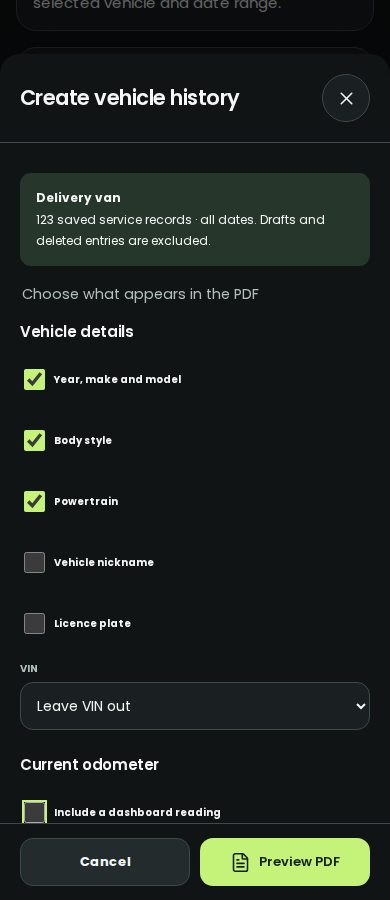
Open Garage → More → Vehicle history beside the vehicle, or use Reports & exports → Create vehicle history. Select the correct vehicle, including an archived vehicle if that is the one you are selling. The builder includes all of its saved service records across all dates, rather than only the rows currently visible on a screen.
Choose the vehicle fields and optional service details you want in the PDF. You can omit the VIN, show it in full or show its last six characters. Plate, nickname, notes, costs, provider and seller information start off so you can make a deliberate choice about each.
If you include the current odometer, compare it with the dashboard and confirm the reading date. This value is for the report. Confirming it does not change the odometer stored in your garage, so do not treat report preparation as a hidden vehicle-record correction.
Inspect every receipt before including it
Documents start unselected. Open each one, review it and then select it if it belongs in the buyer’s copy. A useful receipt can show the work, date and vehicle details, but it may also contain your address, phone number, payment information or unrelated items.
Selected originals are copied in full without redaction. A multi-page PDF contributes all of its pages. Do not assume that selecting a receipt includes only the part currently visible in its preview. If it contains information you do not want to share, leave it out or prepare an appropriately edited copy separately before attaching it.
The report links receipts to appendix numbers so a reader can connect a service entry with its attachment. That label means a document is attached. It does not mean the app or another organisation independently verified the service.
Preview the actual PDF before sending it
- Choose Preview PDF after making your selections.
- Move through every page and zoom in where you need to read small details.
- Check vehicle identity, dates, odometers and service descriptions for mistakes.
- Inspect the document appendix, including pages that were not visible in a receipt thumbnail.
- Return to the builder if you want to change the selection, then generate a fresh preview.
The PDF uses white printable pages, chronological service entries, coverage and generation dates, and page numbers. Missing values remain identifiable. A tidy layout is useful, but accuracy comes from the records and choices you checked before generating it.
USE IT IN DRIVEFIVE
Your next step
Open the matching guide for the exact steps in the app.
Get DriveFiveSources & app documentation
Published by DriveFive · App instructions checked against version 1.16.1. Read our editorial approach.