
Build a history of the tire set, not just appointments
A useful winter tire log answers four questions later: which set was installed, on which vehicle, at what odometer, and what work was completed. An appointment in a calendar shows when you planned to go. A completed service entry shows what actually happened.
- Log the seasonal installation when the winter set goes on the vehicle.
- Log the removal when the winter set comes off, using the actual odometer that day.
- Create a separate entry for a mid-season rotation, repair, inspection or replacement when it is distinct work.
- Use a short set identifier, such as “Winter set A,” plus size or wheel details only when you can verify them.
- Keep recommendations or booked work in notes or reminders until the work is completed.
This approach also keeps two seasonal sets separate. If a household has several vehicles, each record belongs under the vehicle that used the tires. A receipt filed under the wrong vehicle can make the dates and kilometre sequence look plausible while still being wrong.
Check the rules and guidance that apply to your drive
Canada does not have one universal winter-tire calendar for every driver. Provincial rules, signed routes and local conditions differ. Québec requires winter tires on most Québec-registered motor vehicles from December 1 through March 15, subject to listed exceptions. British Columbia law allows winter-tire or chain requirements to be imposed by signs and current route conditions, with technical tire requirements defined in provincial regulation.
Transport Canada advises using four matching winter tires for stability, checking pressure when the tires are cold and avoiding winter tires worn close to 4 mm of tread on snow-covered roads. Treat these as safety guidance, then check the current rules for the province and routes you use.
Collect the details at installation or removal
Read the dashboard odometer while the vehicle is parked and use the invoice, work order or your own contemporaneous notes for the rest. Record measurements only when they were actually taken. If a shop provides tread depths or tire positions, preserve the units and wording rather than turning them into a pass-or-fail claim of your own.
| Field | Useful entry |
|---|---|
| Vehicle | The exact vehicle receiving or removing the tire set |
| Date | The day the work was completed |
| Odometer | The whole-kilometre dashboard reading at the service |
| Work | Installed, removed, rotated, repaired, inspected or replaced |
| Set details | A consistent set name and any verified size, wheel or position details |
| Condition | Measured tread depths, damage notes or shop findings when supplied |
| Cost and provider | The actual CAD total paid and the shop, when applicable |
| Receipt and notes | The supporting document and details needed to understand the entry later |
A description such as “Installed Winter set A; four tires on steel wheels; shop measured tread at 7 mm” is more useful than “tires done.” If the measurement is not available, leave it out. Do not copy a tread value from the previous season.
Log the tire change in DriveFive
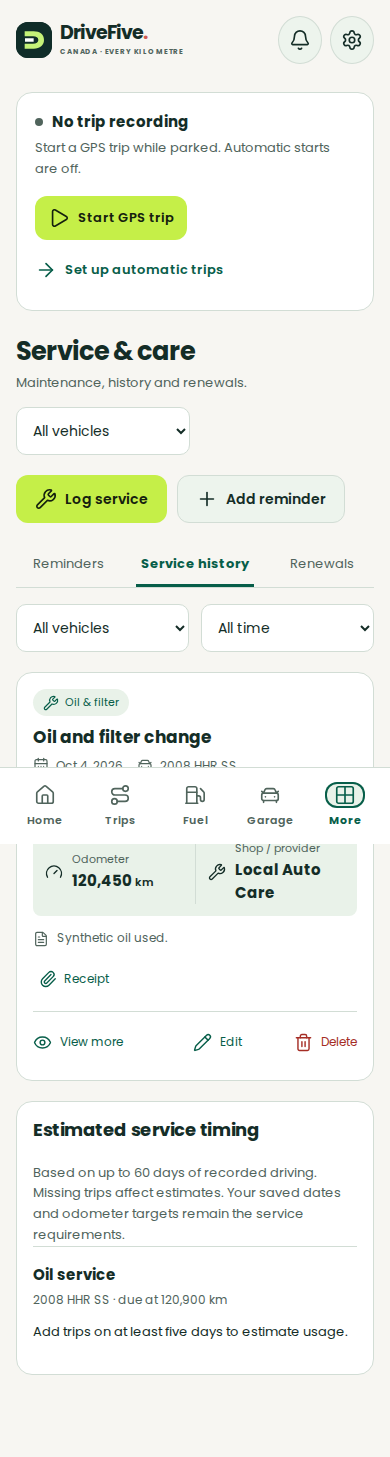
- While parked, open More → Service & care and choose Log service.
- Select the vehicle and enter the actual completion date and whole-kilometre odometer.
- Choose the tire-related category and describe the completed work, including your consistent tire-set name.
- Enter the actual total paid in CAD. Use zero only when the completed work genuinely cost you nothing.
- Add the shop, condition details, tire positions or other useful notes when supported.
- Expand Receipt & more details and attach a clear photo or existing file when useful.
- Review the vehicle, date, odometer, work and attachment, then save the completed service.
An unfinished draft is not completed maintenance. After saving, open Service history and use View more to confirm that the full description, provider, notes and receipt are attached to the intended vehicle.
Worked example: calculate one winter set’s seasonal kilometres
Suppose Winter set A is installed on a hatchback on November 18, 2026, at 84,260 km. The same set is removed on April 12, 2027, at 92,700 km. Both readings come from the dashboard and both services are saved under the same vehicle.
| Record | Date | Odometer |
|---|---|---|
| Winter set A installed | November 18, 2026 | 84,260 km |
| Winter set A removed | April 12, 2027 | 92,700 km |
Subtract the installation reading from the removal reading: 92,700 − 84,260 = 8,440 km. That is the estimated distance the vehicle travelled while this set was installed, assuming the dashboard readings are correct and the set remained on for the whole interval.
DriveFive keeps the two service records; this example performs the subtraction manually. It does not create a tire-life calculator or certify remaining tread. If the set was temporarily removed, moved to another vehicle or partly replaced, add records that explain those changes instead of treating the whole interval as uninterrupted use.
Set a reminder without inventing an interval
A reminder can use a due date, a due odometer or both. Choose targets from current provincial or route requirements, your vehicle and tire guidance, and advice from a qualified service provider. DriveFive does not import a manufacturer schedule or decide the interval.
- Open Service & care and choose Add reminder.
- Select the vehicle and use a clear name such as “Review winter tire removal” or “Rotate Winter set A.”
- Enter the supported due date, due odometer or both.
- If the task truly repeats, add a kilometre or month interval that you have reviewed.
- Choose an advance-distance notice when useful, or zero for a due-only kilometre reminder.
- Allow Android notifications if you want them, and still check the reminder list because phone scheduling or permissions can delay alerts.
When the next tire service is actually completed, use Complete & log from the reminder or link the new service to the reminder while saving. That records the real date and odometer and advances a repeating reminder. Simply editing an old service should not be used to pretend that new work occurred.
Review the history before the next seasonal change
Before the next installation, filter Service history to the intended vehicle and compare the most recent installation, removal, rotation and repair records. Check that odometers move forward, the same tire-set name is used consistently and receipts match the work described.
- Look for a missing removal or installation record before calculating seasonal kilometres.
- Correct a transposed odometer using the dashboard reading or source document that supports the change.
- Keep a shop’s tread measurements and recommendations in their original context.
- Do not carry last season’s condition notes forward as if they were new measurements.
- Keep storage location, wheel position or damage notes only when they help identify or manage the set.
If you need a file, open More → Reports & exports, select the vehicle and dates, and create a Service history CSV or PDF. The generated report contains all matching saved service records for that scope. It remains an owner-maintained record, not an inspection or warranty.
Keep the log connected to the real documents
Attach the full invoice or receipt when it helps explain the work, then reopen the saved copy to confirm that the date, provider, amount and tire details remain readable. Keep the original paper or source file separately whenever its original quality, warranty value or legal purpose matters.
The reliable routine is straightforward: identify the set, record the actual service and dashboard odometer, preserve supported measurements, and create the next reminder from guidance that applies to you. Paired installation and removal records then show the history of the set without claiming more than the documents prove.
USE IT IN DRIVEFIVE
Your next step
Open the matching guide for the exact steps in the app.
Get DriveFiveSources & app documentation
- Transport Canada — Using winter tires
- Transports Canada — Utilisation des pneus d’hiver
- British Columbia — Motor Vehicle Act Regulations: winter tires
- Gouvernement du Québec — Obligations liées aux pneus d’hiver
- DriveFive — Maintenance and service history
- DriveFive User Guide — Service, reminders and reports
Published by DriveFive · App instructions checked against version 1.27.0. Read our editorial approach.