
DRIVEFIVE FOR ANDROID
User guide
Step-by-step help for your trips, vehicle costs, maintenance and garage records. The same guide is available offline inside DriveFive.
Prepared for version 1.27.0: Follow system, ten themes and a custom accent colour join the existing trip, review and feedback tools. Google Play availability of this version is not yet confirmed; check your installed version in Help & about. Earlier versions may differ. Screens below retain their capture-version labels and use sample data.
Set your theme and accentExplore the new InsightsUse Fuel & RangeSet up Android widgets
For app version 1.27.0 · 30 topics · Updated
No matching topics
Try a shorter phrase such as “NFC”, “fuel” or “backup”, or clear the search to see the whole guide.
Getting started
Getting started & your garage
#DriveFive brings vehicle records, journeys, running costs and reminders together. It uses Canadian dollars, kilometres, litres, L/100 km and kWh. No account is needed.
Add and choose vehicles
- Open Garage → Add vehicle. Give each vehicle a recognisable nickname and enter its current dashboard odometer.
- Choose its powertrain and province or territory. Open Receipt & more details for optional specifications, renewal dates, annual readings and notes.
- Save. Use the vehicle selector on supported screens to view one vehicle or the whole garage. Check the vehicle shown in every entry form before saving.
The tracking strip always names the vehicle actually being tracked, even when you filter reports to another vehicle. An NFC tap selects the tag’s vehicle for its trip.
Use the quick controls
Home keeps four shortcuts near the top. Automatic choices match your vehicle; use Settings → Home shortcuts to choose and reorder your own four, including any section from More. The tracking card before the vehicle summary offers Start GPS trip when idle and shows your current start method. The live trip card appears while a journey is active. The footer is Home · Trips · Fuel · Garage · More. Trips opens the trip list. Fuel opens fill-up history, with a separate Add fuel action and an EV charging tab. Returning through Fuel selects fuel history even if you last viewed charging. Only one destination is highlighted; fuel and charging entries belong to Fuel. More contains the remaining tools and Settings.
Whole kilometres
Distances and odometers display as rounded whole kilometres. GPS retains its calculation precision internally so adding many journeys remains accurate. Money, litres and energy keep the decimal places they need. A very short journey may display as 0 km.
Archive and annual readings
Archive a vehicle when you stop using it to preserve its history. A vehicle with records cannot simply be deleted. Optional year-start and year-end odometers help compare logged distance with actual annual use; update them from the dashboard.
Try demo uses separate sample records. Exit demo to return to your own garage. Preview mode cannot record real GPS, program tags or schedule Android backups.
Your dashboard, attention list and recorded totals
#Home keeps your four shortcuts at the top, followed by the trip or tracking card, contextual message, vehicle card and the rest of your dashboard. Ten themes use the same controls, spacing and icons. Open Settings using the gear beside the reminder bell.
Choose the dashboard vehicle
The vehicle name on the vehicle card is a selector. Choose one vehicle to see its details and recorded odometer, or All vehicles for combined totals. This selection changes the dashboard only: an active trip always names its own recording vehicle. The date range is beside the totals below.
Needs attention
This section appears when there is something to act on. Review opens all unreviewed trips for the selected vehicle across all dates, including older trips outside the dashboard date range. Saved drafts cover all vehicles. Due or approaching service and renewal reminders open their matching section. Expand Reminder actions to log a service, snooze or hide a service reminder; Undo remains available after hiding. Snoozed, hidden and disabled reminders stay out of this list. A selected backup destination can prompt you to check that the file was saved.
Understand your totals
Distance uses saved trips in the selected vehicle and date range; an active trip is included after saving. Recorded costs include entered fuel, charging, service and other expenses, not every cost of owning a vehicle. Missing fuel costs are excluded and identified. Fuel economy uses complete fill-to-fill intervals ending in the range. A dash means there is not enough recorded information; a recorded zero stays zero. Expand How these totals work for the calculation details, or open Insights.
On narrow screens, dashboard totals are shown as rows so each amount remains readable. Currency amounts stay together; a unit such as CAD may appear on a separate line. In Insights, Total spending appears above the spending chart, with category amounts beside or below it.
Compare periods and explore trends
In Insights, Changes from the previous period compares the selected dates with the immediately preceding period of the same number of days. Exact dates are shown. All time has no earlier comparison; choose a bounded range. A zero earlier amount has no percentage baseline. Cost per logged kilometre remains unavailable without distance or when fuel costs are missing.
Fuel-economy and energy-price trends use one vehicle at a time. When All vehicles is selected, use Trend vehicle to choose the chart vehicle; the page totals still cover all selected vehicles. Charts follow the page date range. Archived vehicles with retained history remain available.
The fuel chart shows up to eight complete full-to-full intervals ending in the selected period. Earlier anchor fills and partial fills are included; missed fills and cleanup gaps prevent an incomplete interval from being used. The period average weights all matching complete intervals by distance, including older intervals beyond the plotted eight. Each plotted point represents an interval rather than an equal duration. Show trend values lists the dates, quantities and distances.
Fuel and charging prices are recorded cost divided by litres or kWh. The period average uses all matching entries with a known cost and a positive quantity, including recorded zero costs. Up to eight recent dates are plotted, with entries on the same date combined by quantity. Entries without usable costs or quantities are identified and excluded. These are recorded purchase prices, not live prices or an EV driving-efficiency calculation. Viewing trends does not change records, odometers or expenses.
Review and enter records
In Trips, use the review filter and Review next trip to work through the matching queue. Check the category, purpose, locations and odometer, then tick the confirmation. Save & review next saves that trip and opens the next matching record; Save & close ends the current edit. An active trip keeps its own vehicle, recording status and controls at the top. Vehicle & date range can be expanded without stopping recording.
Fuel and service forms put the main fields first. Required fields are marked *. Fuel price and total cost may remain blank when unknown. Add a receipt opens Receipt & more details; receipt-scanning suggestions still need your review before use. Optional fields and unfinished-entry drafts remain available.
Backup confidence
Backups separates the file creation time, selected sharing destination and last copy confirmed by you. Preparing a file or selecting an app is not proof of a saved cloud copy. Open the destination app to check your file, then choose I checked my saved copy. A newer prepared backup is identified separately from an older confirmation. Automatic folder-backup status stays separate.

Choose your four Home shortcuts
#Choose Automatic or Custom
Open Settings → Home shortcuts. The four buttons stay at the top of Home, before the tracking card, quote and vehicle card.
Automatic follows the selected vehicle. The default row is Add fuel, Log service, Insights and Reports. An electric-only vehicle selection gets Add charge in the first position. With All vehicles selected, this exception applies only when every active garage vehicle is Electric. Gasoline, diesel, conventional hybrid, plug-in hybrid, mixed garages and unknown or empty selections keep Add fuel. Archived vehicles are ignored. Custom choices keep their saved order, including a row that matches an older default.
Custom lets you choose each of four positions. Pick any section from More, including Insights, Reports & exports, Saved drafts, Vehicle timeline and Odometer checks, plus Garage and the four entry actions. A destination already selected in another position is unavailable; use the up/down arrows to swap the order. Changes save automatically.
Your custom choices stay the same when you switch vehicles or reopen DriveFive. Full ZIP backups retain them. Old or unrecognised choices safely return to Automatic. Reset to automatic restores vehicle-based choices.
Insights and Reports open their sections without automatically exporting anything. A section shortcut opens that section. Entry actions reuse the normal vehicle picker and unfinished-entry protection. Buttons do not start tracking, export, delete or save a record by themselves. More keeps all its usual destinations.
Understand the tracking card
#On Home, the idle card says Ready for your next trip with Not recording above it when no mode is waiting to start a journey. Other screens use the compact No trip recording status. Choose Start GPS trip while parked to use the existing vehicle/start form, or open Tracking options. NFC and automatic modes keep their own status and setup links.
NFC tags ready means NFC is enabled, this phone has NFC switched on, and an enabled tag belongs to an active garage vehicle. Tap your vehicle tag to start an NFC trip. Tag readiness does not mean GPS is recording; location and notification requirements are checked when starting. If device NFC is off or the tag needs setup, the card says so.
Watching for driving means Auto Trip monitoring is running. Waiting for Android Auto means connection starts are enabled and monitoring. Both modes together show Waiting for a trip, with each assigned vehicle named. A connection check, weak GPS or stopped monitoring has its own status. NFC readiness can appear alongside automatic monitoring.
For an Ask each time tag, Choose a category to start means the category prompt is waiting; it is not a recording indication. After a valid NFC request is sent, Starting NFC trip appears until the recorder confirms the result. If confirmation is missing, check Trips before tapping again. A recording trip replaces the Home status with its existing distance, time, GPS and trip controls. Paused or interrupted trips keep their controls; the compact status on other screens offers Resume recording. Settings changes and tag readiness do not start a trip by themselves.
Home greetings and shortcuts
#Home has 1,000 rewritten messages about DriveFive tasks. Current activity comes first, with variety from your phone's local time, calendar season, selected vehicle's powertrain and body style. No weather, location or quote service is used. Recent messages are avoided.
A greeting appears once at the start of an app visit. A later return after at least five minutes away, or on a new local date, can begin a new visit. Returning from the camera, a file picker or a permission prompt continues the visit. Returning to Home from another DriveFive page refreshes the message without saying hello again or welcome back.
Every task-related message includes its matching shortcut. Shortcuts open existing pages or entry forms for the selected vehicle; they do not save a record or begin recording by themselves. With All vehicles selected, Home uses messages that do not require a particular vehicle. Fuel and charging prompts require the appropriate known powertrain.
An active trip offers View current trip and follows its recording, paused or unconfirmed GPS state. A recent trip awaiting review links to that exact trip. Save messages require a confirmed successful save; simply opening a page does not count. Backup-created messages require a verified backup copy, not just a selected folder.
Context is automatic. There is no parked or preparing selector, and idle app status does not prove that you are parked. Messages stay steady during normal live polling and while a form is open. A changed trip or invalid shortcut can update the message to keep it accurate. Visit timing and recent phrase IDs stay on this device, separate from your garage records and full ZIP backups.
Android home-screen widget
#Add and customize
Open More → Widgets and choose Preview & customize for a layout. The native setup shows a sample preview, not live vehicle readings. Choose one vehicle or All vehicles, a style and accent, a reporting period, information in priority order, and shortcuts. Costs are hidden by default. Minimal also supports background opacity. Save an existing widget, or choose Add to home screen and confirm the launcher placement.
You can also add DriveFive from your launcher’s Widgets picker. Each placed widget has separate settings. To edit one, use More → Widgets, tap its title when visible, or use the launcher’s edit command. Deleting a widget removes only its setup. Existing widgets keep their assigned vehicle.
Layouts and resizing
Quick button starts at 1 × 1 and uses your first shortcut. Trip strip starts at 2 × 1 and opens trip controls. Vehicle snapshot starts at 2 × 2. Shortcut bar starts at 4 × 1; Driver card at 4 × 2; Dashboard at 4 × 4 or larger. These grid sizes are suggestions, not guarantees. Your launcher controls the maximum size; a full-screen edge-to-edge widget is not promised.
Widgets arrange their content for the available width and height. Narrow widgets stack figures; taller widgets add recent trips, the next service reminder, business/personal distance and recorded period information. Expanded Quick buttons show their action and vehicle context. Driver card and Dashboard keep exactly the same size and control positions when a trip starts, pauses or ends. Live distance, elapsed time and trip average use the existing space. Trip average includes stops and pauses; it is not current speed. Large text shows fewer details to keep controls usable. Resize a widget yourself to show more information.
What widgets show
Summaries use the same recorded totals and complete-fill fuel calculations as Insights. Today, This month and This year use local calendar dates. An odometer belongs to one vehicle; All vehicles has no combined odometer. Missing fuel consumption stays unavailable. Costs include recorded amounts only. The dashboard shows recent saved trips and the next visible service reminder; snoozed, hidden, completed and disabled reminders are excluded.
Tracking status always identifies the actual active vehicle. Trip distance and elapsed minutes are snapshots, not a live speedometer. Elapsed time includes stops and pauses. Tap a trip action to review controls in the app. All vehicles entry shortcuts ask which vehicle to use; a missing or archived vehicle requires a new choice. The Fuel shortcut becomes Add charge for an electric-only vehicle; Add charge is also available as a chosen shortcut. The Dashboard energy panel opens Fuel & Range, or charging entries for an electric vehicle. It does not claim a live fuel or battery range: the calculator needs your confirmed inputs. Your existing widget choices are preserved; new widgets start with distance, trip count and business distance.
Refresh and privacy
Widgets update after relevant record changes and reuse the existing tracking service for active-trip updates. Android can delay periodic refreshes; open the app to refresh after force-stop. A displayed update time is a snapshot time, not a guarantee of continuous tracking. Widgets add no new GPS recorder, network service or subscription.
Vehicle names, trip details, service information and any costs you enable can be visible on the home screen. Choose what to display and check transparent styles against your wallpaper. Widget setup is local to this phone and is not included in the garage ZIP backup; add widgets again on a replacement phone.
Settings, privacy & accessibility
#Choose your language
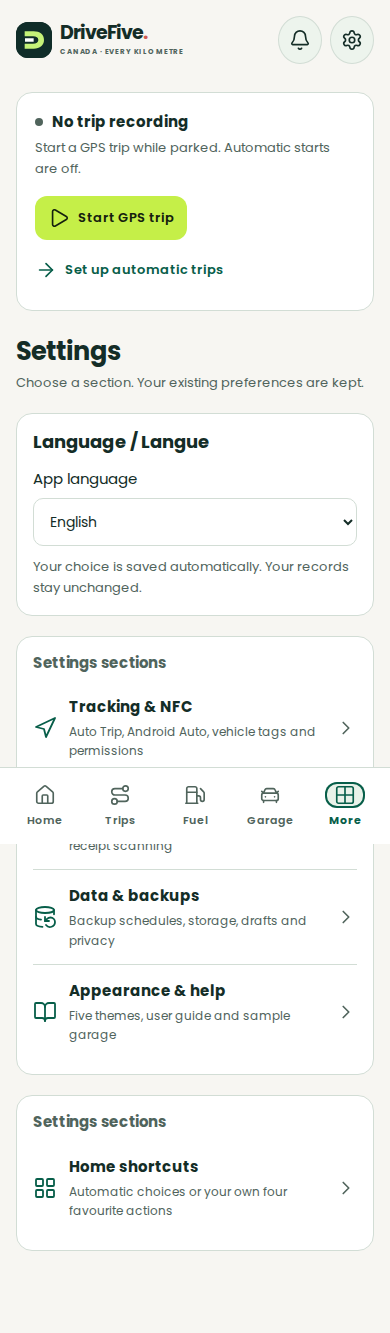
Open More → Settings. The Language / Langue selector at the top offers Follow device language, English and Français (Canada). Follow device language uses the first supported English or French language in your phone’s preferred list, with English as the fallback. A manual choice is remembered on this device. On Android 13 and later, this choice also appears in Android’s per-app language settings.
Language changes affect interface text, help and report labels. Your vehicle names, notes, trip purposes, receipt contents and saved category values are kept exactly as entered. Existing records, calculations, GPS recording and backups are unchanged. Dates and displayed numbers use Canadian formatting for the selected language. CSV numbers remain machine-readable. The language preference belongs to this device and is not imported from a garage backup.
Installed app information
Open Help & about to see the installed DriveFive version and build number at the top. These values come from the installed Android package. Include them when asking for support.
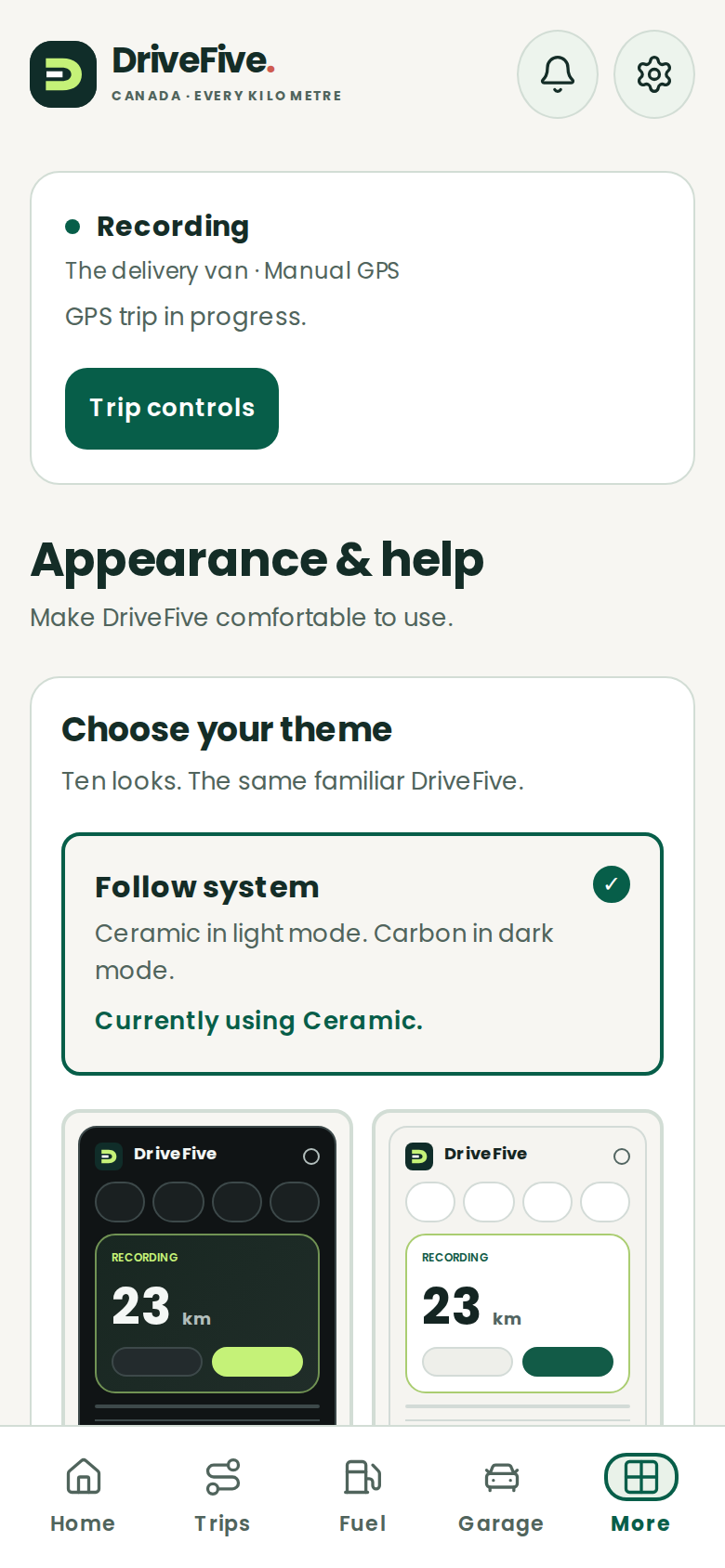
Open Settings → Appearance & help to choose Follow system or one of ten themes: Carbon, Ceramic, Glacier, Circuit, Forest, Arctic, Sand, Blossom, Ocean and Midnight. Ceramic, Arctic, Sand and Blossom are light; the other six are dark. Follow system uses Ceramic when Android uses light mode and Carbon when Android uses dark mode. New garages follow the system; existing garages keep their previous choice until you change it. Older Android devices without a system dark-mode setting use Ceramic with Follow system; you can always select a dark theme manually.
Tap a theme to save it immediately. System changes update colours in place without closing a form, losing your position or finishing a trip. Light and Dark preferences from older versions still open Ceramic and Carbon. Themes and fonts work offline. The app follows Android’s text size; larger text may make pages longer.
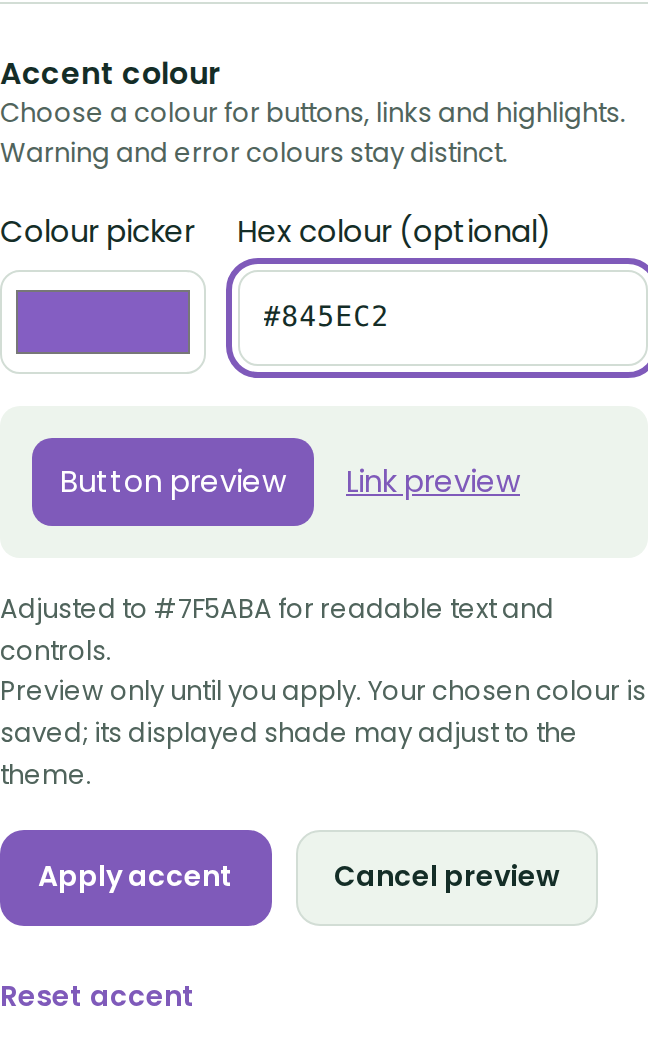
Use the colour picker or enter a three- or six-digit hex colour to preview a custom accent. Choose Apply accent to save, Cancel preview to return to the saved colour, or Reset accent to restore the theme’s default. Leaving this screen also cancels an unapplied preview. Your chosen colour is retained, but its displayed shade adjusts when needed for readable text and controls. This applies to every theme, including Follow system. Warning and error colours remain separate. Theme and accent preferences are included in full backups. Sample-garage choices affect only sample records. Home-screen widgets keep their own appearance settings; online map tiles keep the map provider’s style.
Information panels stay expanded through status updates until you close them or navigate to another screen. Multiple panels may remain open. Optional form sections also retain their entered values when collapsed.
Location choice
Before GPS use, DriveFive explains precise-location collection, background recording and its purposes. Decline to keep using manual records. Android still controls precise-location and notification permission; changing them can interrupt GPS features.
Automatic tracking, NFC and backup scheduling are independent optional settings. NFC-only use can start a GPS trip even with Auto Trip off. Stop an active trip separately if you no longer want it recorded.
Data controls
Read Privacy & Data for stored information, address lookup, chosen exports, backups and deletion. There is no account, advertising service or built-in developer analytics upload. Your chosen geocoding, maps, file viewer or cloud-folder provider may process information under its own terms.
Use a device screen lock. Delete records or disable tracking when you choose. Clearing Android app data or uninstalling removes the internal garage; exported copies remain wherever you saved or shared them. Remove those separately if needed.
A consistent appearance
Lists, detail windows, forms and settings use the same card style. Accent-coloured buttons identify the main action; red identifies deletion. Your selected theme remains in use, with all ten themes available. Existing Home shortcuts and their order are preserved.
Reviews and private feedback
After you have reviewed at least five trips and used trip review for a week, a small, optional Google Play invitation may appear after saving a review. It does not interrupt a review queue or appear during an active trip.
Not now dismisses the invitation, with at least 90 days before another reminder. Don’t ask again turns invitations off. Opening the Play link also stops automatic invitations; DriveFive does not know whether you submitted a review. These preferences are saved locally and included in full backups.
Open More → Help & feedback at any time to read the User guide, review DriveFive on Google Play, or send feedback or report a problem. Both review and feedback options remain available even when invitations are off. Feedback opens your email app addressed to hellodrivefive@gmail.com; you choose what to write and whether to send it. No trip details or attachments are included automatically.
Trips & tracking
Manual trips & trip review
#Read your trip cards
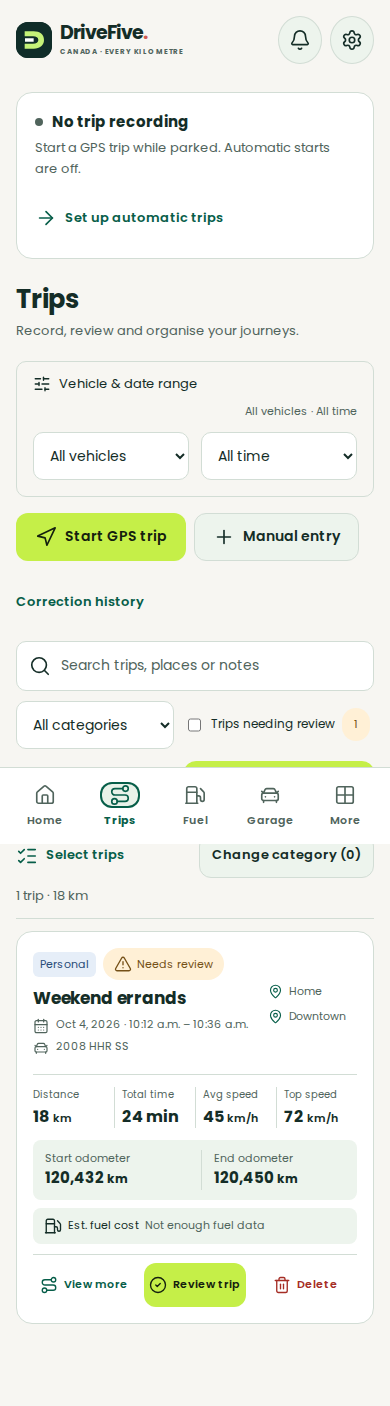
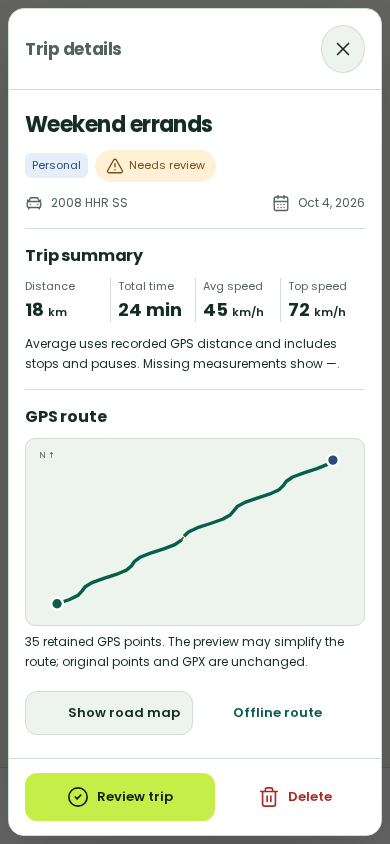
Completed trips show category, review status, purpose, date, start/end time, vehicle, endpoints, distance, total time, average and top GPS speed, and both odometer readings. Missing measurements show a dash. Average uses recorded GPS distance and elapsed time, including stops and pauses; editing odometer distance does not rewrite GPS speed.
The full-width Search trips, places or notes field searches your history. Category and review filters remain available. Choose Select trips for bulk category changes or merging compatible trips. Review trip opens the existing editor; check the details, tick the confirmation and save. Delete asks for confirmation, retains the odometer correction choices and offers Undo.
View more
View more opens the matching Trip details window with the full summary, route preview, optional road map, endpoint dates/times/odometers, fuel estimate breakdown, recording details and notes. Edit trip, Export GPX, Split trip and correction history remain available. Route retention can remove a trace without removing the trip facts; the window explains when GPX is unavailable.
Open a road map
Open View more on a completed GPS trip. The offline route preview loads first. Choose Show road map to load OpenFreeMap over the internet. Pinch to zoom, drag to move, or use the zoom buttons. Start and end markers stay anchored to the recorded coordinates. Rotate the phone to resize the map. Recording gaps remain unconnected on the road map.
The preview uses a bounded sample for long routes. Original GPS points, GPX exports, distance, speed and odometers are unchanged. A road background does not correct weak GPS readings or reconstruct missing travel. Manual trips and routes removed by retention keep their no-route explanation.
Choose Offline route, close the details or leave the app to release the active road map. No map is loaded on Home, trip lists or in background recording. If the network or graphics support is unavailable, the offline route remains usable. The active-trip snapshot continues to use its existing offline view and explicit Refresh action.
OpenFreeMap currently provides its public road maps without an account, API key or map fee. Availability and terms can change, and your normal mobile-data charges may apply. Opening the map sends requests for the visible map area and network information to OpenFreeMap and its CDN. The route overlay is drawn locally; DriveFive does not upload the full GPS trace, trip labels, receipts or vehicle record to the map service.
Estimated fuel cost
The estimate uses trip distance ÷ 100 × the vehicle’s recorded L/100 km × its recorded CAD/L. Consumption uses the last three complete full-to-full intervals before the trip: total litres ÷ total kilometres × 100. Partial top-ups within an interval count; intervals with missed fills or cleanup gaps do not. If fewer than three complete intervals exist, use the one or two available. Price comes from the latest earlier fuel-up with a recorded cost and valid litres, including a partial fill. If a newer entry has no usable price, the previous usable price and its date are shown. An entered zero remains zero. Same-day and future fills are excluded because reliable fill times are unavailable.
Calculations retain precision until the final amount is rounded to cents. View more shows the consumption record dates, interval count, fuel price and price date. A later purchase does not change an earlier trip’s estimate; correcting eligible earlier fuel logs can. Missing fuel history or distance is explained; electric vehicles show Not applicable. This is fuel only, not charging or total ownership cost, and it is never added to recorded expenses or exports. Recorded spending and historical price averages continue to use actual purchase records.
Log a trip without GPS
- Choose Manual trip on Home or Manual entry in Trips.
- Check the vehicle and date. Enter the starting and ending dashboard odometers; the ending reading must be at least the starting reading.
- Choose a category, purpose, starting place and destination. Business requires a meaningful purpose.
- Confirm you have checked the odometer and trip details, then save. Leave the check off if you still need to review them.
Manual entry works with Auto Trip and NFC switched off and without location permission. Type place names, select saved places, or choose Use current GPS if you want a location lookup.
Review a recorded trip
In Trips, turn on Trips needing review. The count uses the selected date range and vehicle. Open Review trip, check its vehicle, purpose, endpoints and odometers against the actual journey, then confirm the review checkbox and save. GPS gaps and automatic recording can require correction.
Delete a trip and check the odometer
Choose Delete in the completed trip’s actions. Keep current odometer is selected by default. To change it deliberately, choose Correct vehicle odometer and enter the actual whole-kilometre dashboard reading. Check the vehicle and before/after values before confirming. DriveFive never simply subtracts the deleted trip distance.
A retained trip, fuel, charge, service or dashboard reading can prevent a lower correction. Review incorrect retained records first. Finish an active trip for that vehicle before correcting its odometer. A changed garage record requires a fresh preview. Split/merge-linked trips must be handled through Correction history.
The trip deletion and optional correction have the same 30-second Undo. Undo restores the previous odometer only when no newer vehicle activity has occurred; otherwise it restores the trip and keeps newer vehicle information, with a message to reconcile deliberately. The correction remains after the Undo window ends. Historical records and other vehicles are not rewritten. Editing an old description does not undo your confirmed dashboard correction.
Change several categories
- Select the checkboxes beside the intended trips, or Select visible trips (up to 200 at once).
- Choose Change category and check the count and vehicles.
- Select the new category. An optional purpose replaces each selected purpose; leaving it blank preserves existing purposes. Every Business trip still needs a purpose.
- Apply. The change affects only selected records and keeps all unresolved review flags.
Changing filters clears or reconciles selection. If a selected record changes during an update, it is removed from the selection so you can inspect it again. Editing a trip does not automatically reduce a vehicle’s current odometer.
Start, pause & finish GPS trips
#Start recording
- Choose Start GPS trip, check the vehicle and starting odometer, and enter a category and purpose.
- Read the location explanation, including background use while you use another app or the phone is locked. Choose Agree & continue only if you want GPS features, then allow precise location and notifications when Android asks.
- Start and wait for a reliable GPS fix. Keep DriveFive’s ongoing notification available while recording.
A trip that you start with this button continues until you finish it. The NFC stop timer applies only to NFC-started trips. Automatic detection does not create a second recorder during a manual GPS trip.
See the current trip in more detail
During an active trip, choose More info on the Home trip card, or open Trips. Extra information appears only on the card in Trips: start time and starting place, category and purpose, starting and estimated current odometer, and overall average speed. It always describes the active trip's vehicle, even if the page filter selects another vehicle.
The estimated odometer adds recorded GPS distance to the trip's starting reading; check it against the vehicle dashboard before reviewing the finished trip. Overall average speed uses recorded GPS distance divided by all time since starting, including stops, pauses and interruptions. It appears after one minute with recorded GPS points and is not a moving-only average. Missing information shows a dash or an unavailable label.
Open More trip details for a snapshot of the offline route and an estimated maximum recorded speed. Use Refresh to update that snapshot. Dashed route sections mark breaks; no street map is downloaded. Maximum speed needs nearby, consistent readings and excludes isolated spikes, so it may be lower than the saved trip's original maximum. These display calculations do not change stored route points, mileage or the current-speed display.
Home stays compact. Viewing details does not pause or finish a trip, and the open section stays open during live updates. Moving/stopped time totals and engine-idling estimates are not provided.
Pause and finish
Open the recording strip or Trips to reach Pause / Resume and Finish trip. Pause stops GPS updates and keeps the last recorded endpoint, even with Auto Trip enabled. Resume starts GPS again with a route break; movement during the pause is excluded. Finishing while paused uses the last recorded location, not your current position. Review the saved destination and dashboard odometer, and correct the destination manually if needed.
If Android notification permission is denied or the GPS channel is hidden, a manually started trip can still record. Use DriveFive’s Pause / Resume and Finish trip controls; Android also lists the foreground service in Active apps. Enable notifications to keep its recording status visible in the notification drawer.
Understand the status strip
- Recording: an active trip is receiving or waiting for location fixes.
- Monitoring: Auto Trip is waiting to detect driving.
- Paused: the active trip has been deliberately paused.
- Off: no trip or automatic monitoring is active.
- Interrupted: a trip or enabled setting needs attention because the recorder is no longer running.
The strip also shows the tracking vehicle, mode and GPS issues. Missing or poor fixes must not be mistaken for distance travelled. Resume an interrupted trip from its controls and review the gap afterwards.
Background and battery
Once you start tracking while DriveFive is open, its Android foreground service can continue with the screen off. GPS uses battery. Phone power-saving controls, denied permissions, force-stop or restarting the phone can interrupt it. After a restart or force-stop, reopen DriveFive and check the status. Recording is not guaranteed while the phone is switched off.
Automatic trip logging
#Set up hands-off logging
- Open Settings → Tracking & NFC → Automatic GPS trip logging. With Auto Trip off, select the vehicle, default category, purpose and stop delay.
- Choose 1, 5, 10, 20 or 30 minutes. A longer delay joins longer stops into one trip.
- Turn Auto Trip on and complete the location disclosure and Android permissions.
While Auto Trip is on, its configuration fields are disabled. Turn it off to change them, then turn it on again. The On / Off switch remains available. An NFC vehicle tap can update the selected automatic vehicle.
When trips begin and end
Driving detection begins after sustained movement at driving speed (about 15 km/h). Brief movement alone is insufficient. Once a trip is active, a sustained stop starts its selected wait. Driving again resets the wait. Poor or missing GPS does not count as a confirmed stop.
When the delay is reached, the trip is saved using its detected arrival time and remains available for review. Monitoring continues for the next journey. A long queue, parking stop or stop at home can reach the same delay; the phone cannot know the reason you stopped.
The phone also cannot reliably distinguish driving from being a passenger, cycling quickly or using public transport. Use the review filter and turn monitoring off when it is not wanted.
Turn it off
Turning Auto Trip off saves an active automatically detected trip and stops monitoring. An active manually started GPS trip continues. An NFC-started trip follows its own timer when Auto Trip is off, or can be finished by tap or button. Always check the visible status afterwards.
After rebooting or force-stopping, reopen the app to resume monitoring. Automatic trip logging and automatic backups have separate switches; neither is enabled merely by using manual records.
NFC vehicle tags & stop timers
#Choose and program a tag
- Use an NFC-capable Android phone with NFC enabled. Obtain a blank, writable NTAG215 tag. NFC setup includes an Amazon.ca search link. Check the seller’s specifications; tags mounted on metal need a suitable on-metal design.
- Open More → NFC vehicle tags and enable this optional feature.
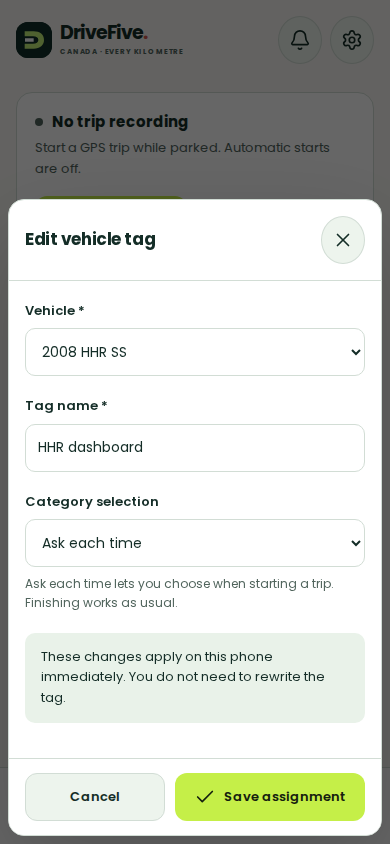
- Choose the garage vehicle and a tag name. Select Use a fixed category to save a category and default purpose, or Ask each time to choose when starting. Business trips require a purpose. Choose Write tag, then hold the tag against your phone’s NFC antenna until DriveFive confirms the write and verification.
- Attach it where it is convenient to tap safely while parked. Test the assigned vehicle before relying on the tag.
DriveFive writes its own vehicle link to the tag. You do not need NFC Tools. Rewriting a tag changes its stored contents; keep it writable if you may reassign it later. Read-only, locked, damaged or unsupported tags can fail. An assignment is specific to this garage; another phone needs matching restored assignments and NFC explicitly enabled.
Choose the category when scanning
With Ask each time, a start tap opens a category prompt for the assigned vehicle. Select Business, Personal, Commute, Medical or Charity, add a purpose if needed, then choose Start trip. Nothing starts until confirmation. Cancelling, leaving the app or waiting 60 seconds dismisses the request. Tap again when ready. A switch prompt includes the category choice and Finish & start; cancelling keeps the current trip unchanged. A changed trip or assignment requires a fresh tap.
Finishing the same vehicle’s trip does not ask for a category. Existing tags keep their fixed category until you change their assignment. Edit / reassign can change this option without rewriting the tag. Per-trip choices do not change Auto Trip category or purpose defaults. Backups preserve the option; restoring still leaves NFC off until you enable it.
Tap to start and tap to finish
With the phone unlocked, tap your programmed tag. DriveFive opens or receives the tap, checks the assignment and permissions, and starts one GPS trip for that vehicle after any required category confirmation. Tap the same vehicle’s tag again to finish. Repeated reads within roughly eight seconds are ignored to avoid a tap immediately undoing itself.
If another vehicle is already being tracked, DriveFive asks you to confirm switching vehicles. Review the previous trip’s ending place and odometer if you forgot to finish it. The app uses one recorder; it does not record two simultaneous vehicle trips.
After a trip automatically finishes, a same-vehicle tap shortly afterwards can ask whether you want to start a new trip. This protects against a late finishing tap accidentally beginning a new journey. Check the confirmation and recording strip.
NFC auto-finish with Auto Trip off
In NFC setup choose Off, 1, 5, 10, 20 or 30 minutes. Off means the NFC trip waits for a tap or Finish trip. A selected delay saves it after that much confirmed stationary time. Movement resets the wait; a GPS outage does not count as a stop. A long traffic stop can reach the timer.
With Auto Trip off, GPS shuts down after the NFC trip is saved. The next journey needs another tap or manual start. Finish the current NFC trip before changing this timer.
NFC with Auto Trip on
The Auto Trip stop delay takes priority over the separate NFC timer. There is only one active stop timer. After finishing, automatic monitoring remains available for the next trip. Manual logs remain available regardless of your NFC preference.
If a tag does nothing, check NFC support, the phone’s NFC switch, DriveFive’s NFC setting, screen unlock, assignment and tag placement. Phone cases and metal can reduce readability. Tap while parked and review the vehicle shown before driving.
Android Auto connection trips
#Choose your car and enable monitoring
- Open Settings → Tracking & NFC → Android Auto.
- Select the garage vehicle, category and default business purpose if needed. This vehicle is explicit: a car connection does not identify a particular garage vehicle. Change it before using another car.
- Optionally select Finish when Android Auto disconnects and choose Immediately, 1, 5, 10, 20 or 30 minutes. One minute is the default delay; automatic finishing starts off.
- Turn on while DriveFive is open and allow precise location and notifications. If the phone is already connected to Android Auto, recording can start immediately. Look for the actual trip status and selected vehicle.
Choose a vehicle before tapping Turn on. Any missing information or permission problem is shown near that button. Turning on… means Android is still checking permission or starting monitoring. Complete its prompts; your vehicle and timer choices stay in place. After a refusal, correct the issue and tap Turn on again. The screen confirms when monitoring starts.
Connection starts and disconnect finishing
Android Auto starts are independent of movement-based Auto Trip. They work with Auto Trip off. Connection reporting supports wired and wireless projection when the phone/head unit exposes the Android connection API; behaviour must be checked with your equipment.
Disconnect finishing applies only to a trip created by Android Auto. Reconnecting during the countdown cancels the pending finish and continues the same trip. Recording continues during the delay unless you pause it, so choose a short delay if you walk away from the car. A paused trip can still finish on disconnection because this timer follows connection state, not stationary GPS fixes. With disconnect finishing off, finish the trip manually.
A manual, NFC or ordinary Auto Trip journey already in progress retains control. No duplicate trip starts and no vehicle switches silently. If you finish an Android Auto trip while still connected, it waits for a new connection before starting another. A connection-owned trip does not also use the Auto Trip or NFC stationary timer.
Check missing distance or an overnight trip
A disconnected status describes the current connection report, not earlier connections. With disconnect finishing off, the delay is inactive and one trip can span several drives or an overnight stop. Elapsed time includes those stops. Finish the existing trip before changing preferences for future trips.
Connection and recording are separate. A paused trip is not adding kilometres. Use Resume recording after checking location and notifications. A pause already stored by an older version remains paused until you resume it. In this version, recorder errors preserve your actual pause choice so permitted recovery can continue an unpaused trip. Recording interruptions can mean service recovery, disabled GPS or long gaps between readings; they are not a count of car disconnects. Check the dashboard odometer for missing kilometres.
Stop monitoring and understand recovery
Turn Android Auto starts off from this screen or its notification. Doing so cancels any pending disconnect finish; an active trip remains available for manual finishing. Auto Trip is a separate switch and can keep its own monitoring on. Configuration fields are locked while Android Auto starts are enabled.
Keep the GPS notification enabled for Android Auto starts. Waiting for an Android Auto connection alone does not request GPS; location recording starts with the trip. If Auto Trip is also enabled, movement detection can use GPS while disconnected. A paused trip suspends GPS updates until resumed or finished. Connection monitoring still uses battery. Android permissions, power management, connection-reporting delays and service restrictions affect reliability. Reopen DriveFive after reboot or force-stop; a car connection cannot always launch a fully stopped app. An interrupted active trip remains for recovery and review. The countdown resumes only after a current connection reading.
No additional server, paid API or subscription is used for the connection feature. Optional encrypted address lookup is separate. This is a phone-side trip trigger, not a dashboard app. CarPlay requires an iPhone application and is not included.
GPS endpoints & saved places
#Starting place and destination can be filled from GPS. A saved place name is preferred when a reliable location falls within its matching radius. Otherwise the phone’s address lookup may provide an address; coordinates or an unresolved location can remain when an address is unavailable.
Save a named location
- Open Saved places, or use the save-place action beside a trip endpoint.
- Give the place a name such as Home, Depot or Customer A.
- Use current GPS while there, or enter its coordinates. Confirm its address and matching radius.
- Save. Check future endpoint matches and reports.
A default radius of 75 metres suits many stops; choose a smaller radius for nearby neighbours. The nearest eligible saved place is used when locations overlap. Names are reflected in trip lists and reports through their saved-place references.
You can type or correct an endpoint yourself. Your manual text is not meant to be silently replaced by a later lookup. Keep the right place selected when editing. Poor reception, underground parking or lack of address service can prevent automatic fill; manual entry remains available.
Use current GPS requests location only for the action. Encrypted address lookup is optional and off until you enable it in Settings → Tracking & NFC. With your consent, it sends unnamed endpoint coordinates to Photon by komoot using HTTPS. It is off after upgrade or restore until you agree. If the free service is unavailable or rate limited, saved names, manual entry and coordinates still work. Address data: © OpenStreetMap contributors. Opening a point in Maps sends that point to the map app you choose.
Review next, split trips & merge trips
#Review one trip after another
In Trips, choose Review next. Inspect the whole-kilometre figures, endpoints, category, purpose and recorded route. Select the verification checkbox and Save & review next. A failed save keeps the form open. Only explicitly saved reviews are marked complete; the queue follows the selected vehicle and filters.
Split a trip
- Open the completed trip’s details and choose Split trip.
- Enter the kilometres assigned to the first part. The remaining recorded distance belongs to the second part; no distance is created.
- If the trip has recorded times, choose a time inside that trip. Retained GPS points are divided by that time. Distance allocation is your correction and is not automatically calculated from the split time.
- Choose the category and purpose. Preview both results, times, odometers and route coverage. Apply only when correct, then review the resulting trips individually.
Where no GPS point is available at the split boundary, endpoint labels need your review. Original GPS gaps remain gaps. Very short trips may be too short to split with whole-kilometre input.
Merge trips
Select 2–20 completed trips for the same vehicle, then Merge selected trips. Odometer readings must join; overlaps and unlogged odometer gaps are rejected. Choose the category and purpose for the merged result, inspect the preview and apply. The result sums recorded distances and preserves separate route segments across recording gaps.
Recover originals
Correction history is in Trips and Settings → Data & backups. View originals shows retained records and route shapes. Restore originals removes the unchanged corrected results and returns the originals to reports. Save or discard their drafts first. If a result has been edited, deleted, trimmed or corrected again, simple recovery is blocked to avoid destroying later work. Restore the newest correction first in a chain. Original snapshots and routes remain in full backups; ordinary trip exports contain only current trips.
Originals are excluded from mileage and cost calculations and are protected from automatic route cleanup. Corrections do not advance the garage odometer. Keeping original routes uses some extra storage; it makes corrections recoverable.
Optional trip rules, costs and labels
#Choose what to enable
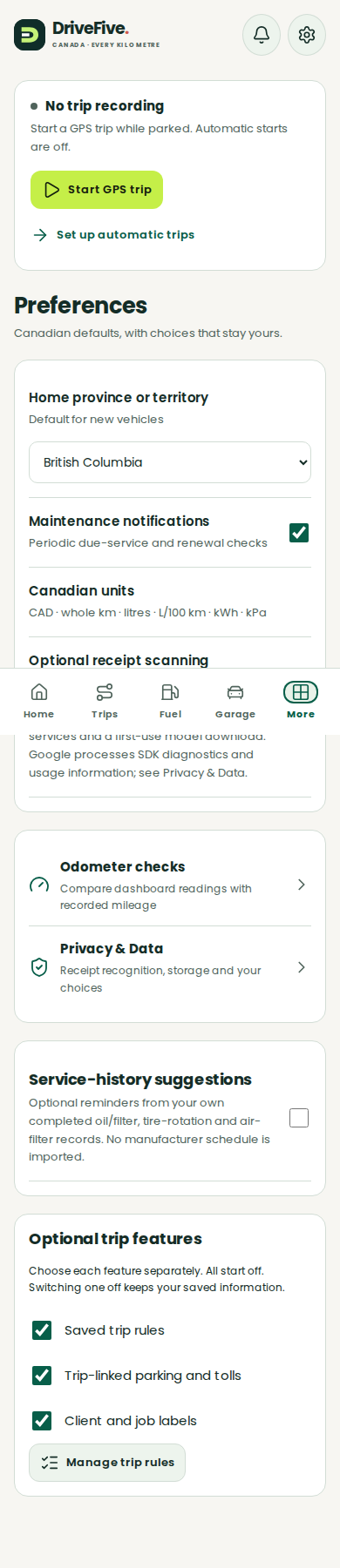
Open More → Settings → Preferences → Optional trip features. Saved trip rules, trip-linked parking and tolls, and client/job labels have separate switches. All three start off on new installations and upgrades. No new field is required to keep using DriveFive.
Turning a feature off keeps its rules, links and labels. Existing labels and linked expenses remain visible in record details and can be edited or removed. Enable labels again to use label filters and the client/job report. Ordinary records, reports and tracking remain available.
Suggest familiar trip details
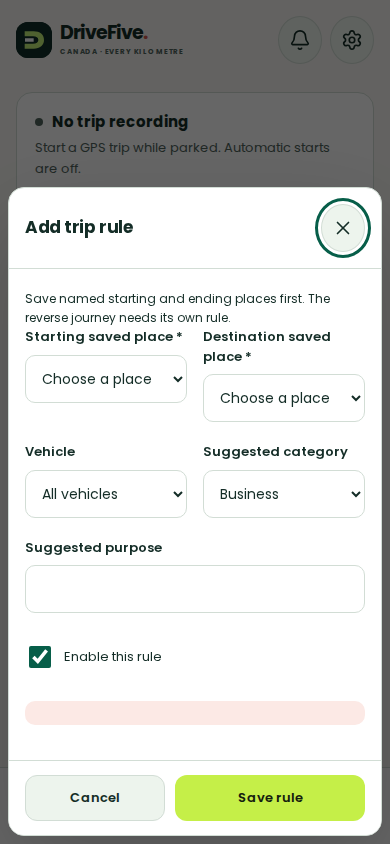
Save your starting and ending locations in Saved places, enable Saved trip rules, then choose Manage trip rules → Add rule. Choose the two places, an optional vehicle, a category and a purpose. Business rules need a purpose. A rule applies only in the configured direction; create a separate rule for the return journey.
When editing or reviewing a matching trip, choose Apply suggestion if the category and purpose are correct. This updates the form only. It does not save the trip or mark it reviewed. Check the trip, confirm review and save as usual. Conflicting matches are shown for you to choose; unmatched or disabled rules leave your entries unchanged.
Link parking and toll expenses
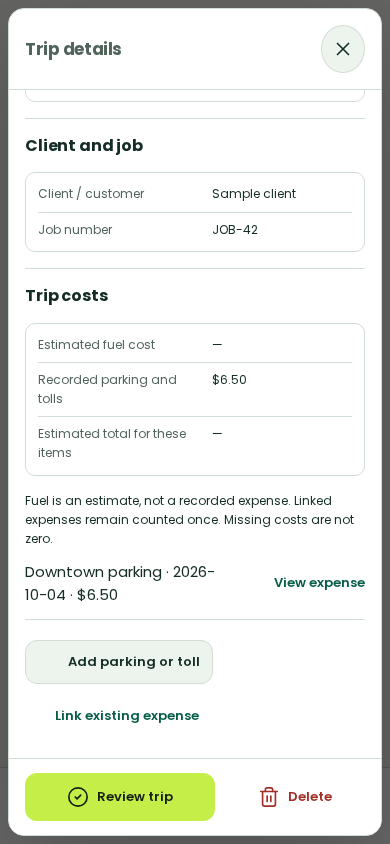
Enable Trip-linked parking and tolls. In a completed trip’s View more window, use Add parking or toll to create an expense, or Link existing expense to choose one already saved for the same vehicle. Search and load more to find older expenses. Confirm the link; an expense can belong to only one trip. Reassigning it replaces the old link.
Trip costs shows the existing fuel estimate beside recorded linked parking and tolls. The combined figure is an estimate for these items only; it is not a new expense or a complete ownership cost. Missing amounts are not zero. Recorded expenses remain counted once in spending and exports. Links do not copy receipts or change the amount paid.
To remove a link, edit the expense and choose No linked trip. Deleting a trip does not delete its expenses; deleting an expense does not delete the trip. After splitting or merging trips, review the expense links and explicitly assign them to the appropriate corrected trip. Charges are never automatically copied across corrected trips.
Organize by client, project or job
Enable Client and job labels. In a trip or expense form, expand Client and job (optional), then enter a client/customer, project or job number. Each field is optional and allows up to 120 characters. Your text stays as entered in both interface languages. Labels are separate from category and business purpose.
Trips and Expenses offer a label search that matches any of these fields across the full selected history, including older pages. In Reports, enter a label under Client and job report, then choose CSV or PDF. The report uses the selected vehicle and date range, includes matching trips and expenses once each, and excludes fuel estimates from recorded spending. Ordinary exports retain any saved labels too.
Splitting a trip carries its labels to both parts for review. Trips with different client/job labels must have their labels aligned before merging, or stay separate. A trip’s labels are not automatically copied to linked expenses. Full backups preserve optional metadata and rules; old backups without them still restore.
Vehicle costs & care
Fuel entries & consumption
#Record a fill-up quickly
- Choose Add fuel on Home, or open Fuel in the footer and choose Add fuel above the history list.
- Check the vehicle, date and whole-kilometre odometer.
- Enter litres. Total paid is optional: enter an amount to calculate price per litre, or enter pump price to calculate the total. Leave both price fields blank if the cost is unknown.
- Check the fuel type and whether you filled the tank completely. Add a station, receipt and notes under Receipt & more details, then save.
After you edit Total paid, that amount is authoritative when you adjust litres. Editing Pump price changes back to calculating the total from litres and price. A total you enter is kept as the actual cost; a displayed three-decimal pump price can be rounded. Fill-ups without a cost still count toward litres and fuel consumption. Missing amounts remain blank in exports and are excluded from average fuel price; cost per kilometre is unavailable until missing fuel costs are added.
DriveFive remembers the fuel type from that vehicle’s recent saved entries. Changing the vehicle updates the suggested type; check it before saving. Recent station names are suggested locally. No old pump price is automatically reused.
Full and partial fill-ups
Consumption uses suitable full-to-full intervals and includes partial fills between them. Mark partial fills honestly. If an entry was missed, mark the missed-fill option so an incomplete interval is not presented as a reliable consumption result. The first full fill generally establishes the starting point.
L/100 km needs complete fuel and distance data. Unusual results can come from an incorrect odometer, missing fill or a falsely marked full tank. Inspect the underlying records before correcting them. Cost totals use Canadian dollars, including taxes you actually paid.
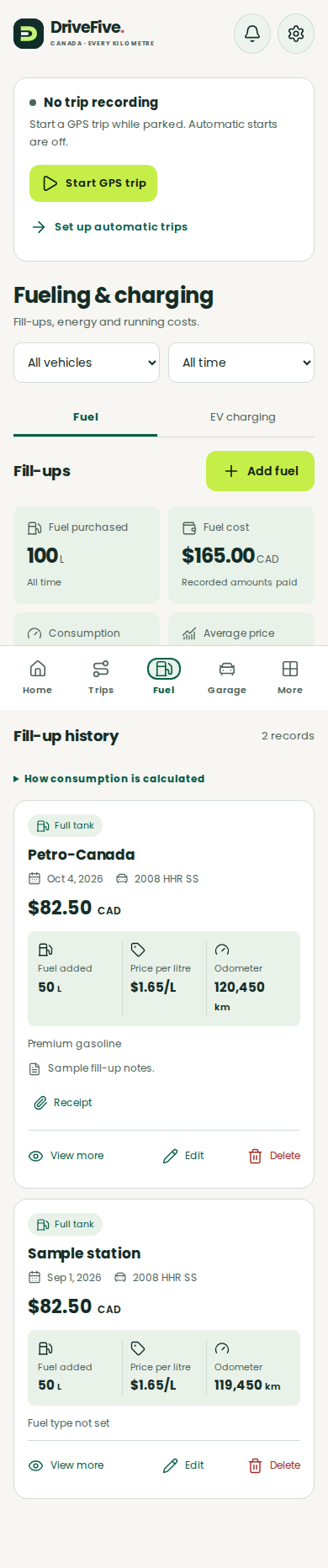
Read a fill-up at a glance
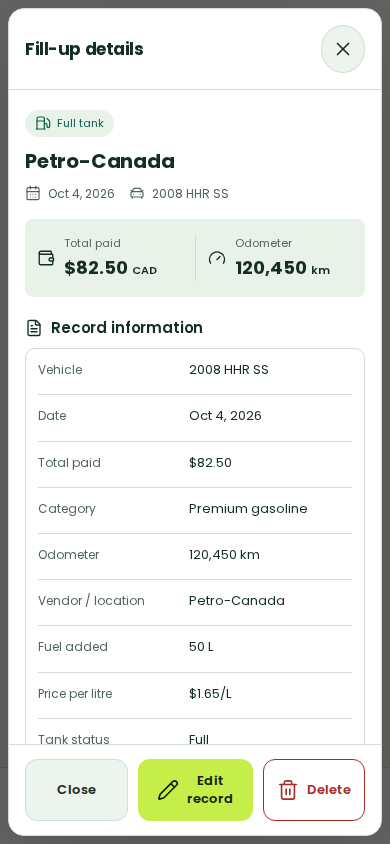
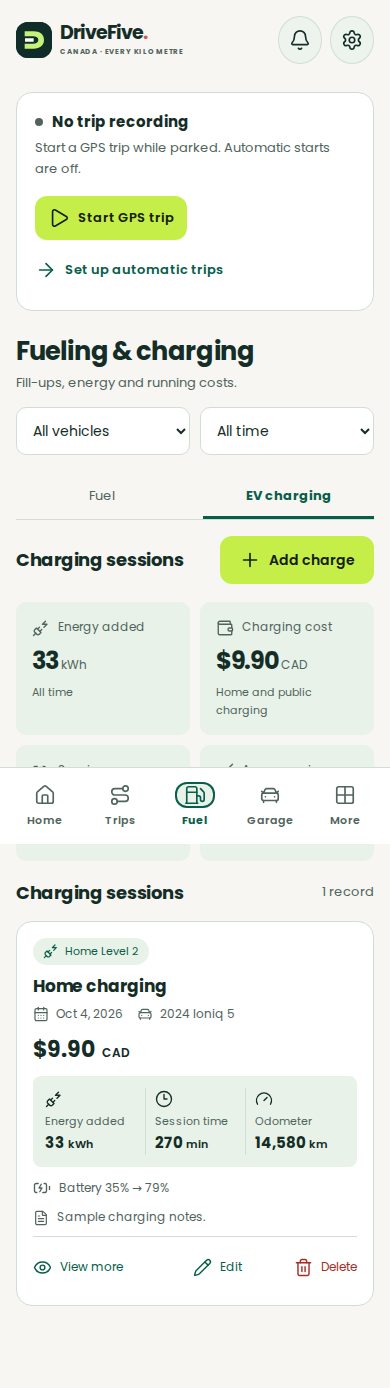
Each fill-up card shows the station, vehicle, date, recorded cost, litres, price per litre, odometer, tank status and any missed-fill indication. Unknown costs stay separate from a recorded zero. View more opens the complete record with notes and its receipt. Charging cards show energy, duration, odometer and recorded battery percentages.
Fuel & Range
#Open the optional tool
Open More → Fuel & Range. Choose a vehicle and enter its tank capacity and reserve in litres. Save vehicle setup remembers only those two values for that vehicle. No setup is required to keep using other app features.
For quicker access, open Settings → Home shortcuts, select Custom and choose Fuel & Range for one of the four positions. Automatic shortcuts stay unchanged.
Choose a fuel starting point
Recorded full tank uses a recent full fill-up, recorded later additions and the current dashboard odometer. Update the displayed saved odometer, then confirm that every subsequent fill-up is recorded. Distance includes driving that was not logged as a trip.
If a usable full tank cannot be found in the latest 200 fill-ups, records have gaps or readings are inconsistent, use Current fuel level. Enter an approximate percentage from the vehicle gauge: 25 for one quarter, 50 for half or 100 for full. A phone does not measure tank contents.
Review consumption and driving distance
When enough fuel records exist, expected consumption starts with the last three complete full-to-full intervals for this vehicle, including recorded partial fills. Total litres divided by total kilometres gives a distance-weighted average. If only one or two complete intervals exist, those are used. Review the displayed record dates and adjust consumption for the planned journey. Otherwise, enter an expected L/100 km value. Battery-only vehicles are not supported by this fuel tool.
Enter the driving distance from your navigation app, including detours and the return journey if needed. This tool does not calculate routes or obtain the destination from another app. Decimal points and commas are accepted without thousands separators.
Read the estimate
Calculate fuel & range shows estimated fuel remaining now, range above the selected reserve, fuel needed and fuel on arrival. If fuel would fall below the reserve, it shows a refuelling message and the additional fuel needed, including the reserve. A negative arrival balance is shown as a fuel shortfall.
Changing an input clears the previous result. Reopening the tool reloads fuel data and clears temporary journey inputs. Setup is stored with app settings and travels in full backups; the tool never edits fuel logs, trips, costs or vehicle odometers.
These are planning estimates, not live sensor readings or a guarantee of reaching a destination. Cold, idling, hills, towing, gauge uncertainty and missing records can affect accuracy. Check the vehicle gauge and recalculate after driving or refuelling. No OBD adapter, Android Auto fuel-data connection, paid service or new tracking permission is required.
EV charging, expenses & receipts
#Charging
Choose Add charge. Enter the vehicle, date, odometer, energy delivered in kWh and actual total paid. Select charger type and optionally starting / ending battery percentage, duration, network, receipt and notes. Home electricity costs must be entered using your own applicable cost; DriveFive does not fetch utility tariffs.
Other expenses
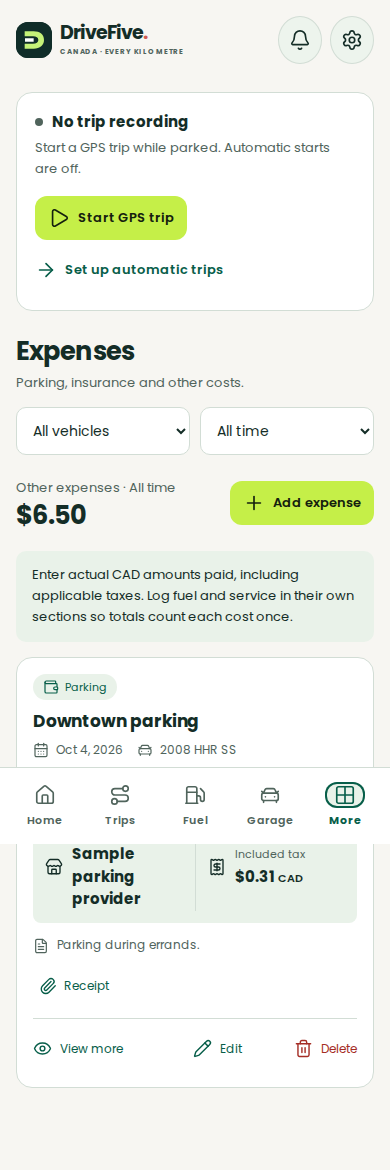
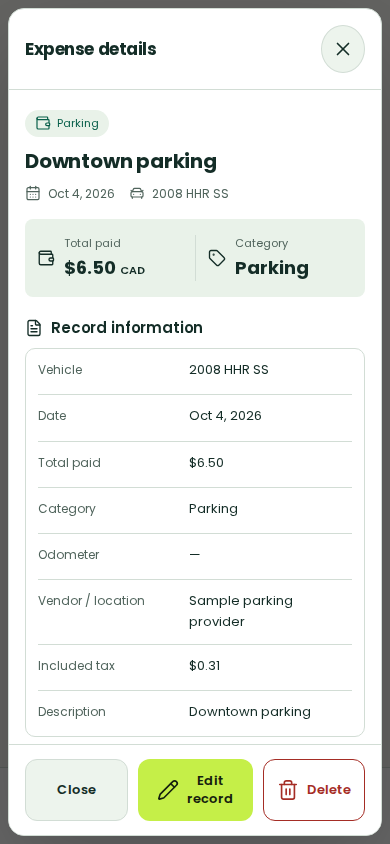
Open Expenses for parking, insurance, registration, tolls, tires, financing and other running costs. Enter the total actually paid. The optional tax field records tax already included in that total; it is not added a second time.
Receipts and documents
- Open a fuel, service, charging or expense entry and expand Receipt & more details.
- Choose Attach new receipt, then Take photo or Choose from files.
- For a new photo, photograph the whole receipt clearly and confirm it in your camera app. DriveFive returns to the entry and selects the receipt while keeping your fields.
- If receipt scanning is enabled, choose Scan selected receipt and review its suggestions. Attaching a photo does not automatically scan or save the entry. Check your information and save normally.
Documents also offers the same camera or file choice after choosing a vehicle. Cancelling capture keeps the existing entry and receipt selection. If you moved to another entry, the photo remains in the original vehicle’s Documents instead of replacing that entry’s receipt. A compatible camera app is required; choose a file if no camera app is available. JPG, PNG, WebP and PDF files are supported; saved attachments must be 8 MB or smaller after any enabled photo optimisation. PDFs can be attached but are not scanned.
DriveFive keeps a local copy. Open a receipt with a compatible viewer; exporting or sharing gives the selected app access to that file.
Receipt photos can be resized and compressed to reduce storage. Inspect the date, vendor, amounts and tax for legibility. Keep original documents separately if you require their original quality. Files referenced by an unfinished draft or a recoverable deletion are protected from routine cleanup during that period.
Expense cards and details
Expense cards show the description, category, date, vehicle, recorded total, vendor and included tax. View more keeps the full notes and receipt together. Included tax remains part of the total; the redesigned card does not add it again.
Optional receipt photo scanning
#Enable only if useful to you
Turn on Optional receipt scanning in Settings → Preferences. This feature uses Google ML Kit’s Latin-script text recognition on your device. Google Play services and a first-use model download are required. The recognition model is not bundled in the APK or requested at app startup. Model download and Google SDK diagnostics can use network data; see Privacy & Data.
Scan and review
- Open a fuel, service, expense or charging form and choose the correct vehicle.
- Choose Attach new receipt → Take photo to capture a receipt, Choose from files for an existing image, or select an already attached clear JPG, PNG or WebP receipt in Receipt & more details. PDFs can still be attached and viewed but are not scanned.
- Choose Scan selected receipt. If the model is not ready, stay connected and retry after its download.
- Compare suggestions with the photo. Suggestions match the selected form: fuel date, station, litres, CAD/L price, fuel type, total and printed odometer; charging network/location, kWh, duration, type and printed battery percentages; service work, category and vendor; or expense description, category and included tax. Canadian English and French labels, cents-per-litre prices and common date formats are recognised where legible. Missing required values are listed separately; existing form defaults are not scanned facts. Conflicting totals, mixed fuel/store purchases and ambiguous dates are flagged for manual review.
- Uncheck suggestions you do not want. Apply checked suggestions fills the form; it does not save a record. Check everything, then save normally.
If you change a suggested field, vehicle or receipt after scanning, DriveFive asks you to keep the edit or scan again. Late results for a closed form are ignored. OCR may misread faint printing, handwriting, tax lines or curved photos. Photograph the whole receipt sharply and crop unused background. If small print is blurred by photo optimisation, turn that option off in Storage and reattach a clearer original. You remain responsible for confirming the values. Manual entry and attachments work with scanning disabled or without the model.
Turning scanning off prevents new scans but may not cancel one already in progress. Android and Google Play services manage the downloaded model; its storage is additional to the APK. Restoring a backup leaves scanning off until you enable it again.
Service, reminders & renewals
#Log completed work
Choose Log service, confirm the vehicle, actual date and odometer, select a category and describe the work. Enter the total paid, including zero for work with no charge. Optional details hold the shop, receipt and notes. A draft is not completed maintenance.
Create or update reminders
- Open Service & care and choose Add reminder.
- Choose the vehicle and a clear name. Set a due odometer, due date or both.
- Optional repeat intervals use kilometres or months. Choose an advance distance, such as 500 or 1,000 km, or 0 for due only. A service type helps match later service entries.
- Allow notifications if you want Android reminders. Check the list even if notifications are disabled.
Use Complete & log in Service & care or Log service on a dashboard reminder. Saving records the work and advances a repeating reminder together from the completed date and odometer. A non-repeating reminder is marked complete. You can also choose Update a reminder with this service in the normal Log service form; leaving it unselected saves the service only. Editing an already saved service does not complete the reminder again or rewrite its next target.
Optional service-history suggestions
In Service & care → Reminders, or Settings → Preferences, enable Service-history suggestions. It starts off. DriveFive looks at your completed oil/filter changes, tire rotations and air-filter replacements for each vehicle, across all history rather than just the visible page. No manufacturer schedule is imported and no external service is used.
Two services provide one recorded interval. With more records, suggestions use the middle of the recent gaps, up to six services. The app skips unclear, inconsistent, decreasing-odometer, same-day conflicting and incomplete histories, and records that describe inspections, repairs or cabin-filter work. One-off repairs and other service categories are not inferred. Drafts, future-dated and deleted records are excluded. An existing matching reminder, even one turned off, prevents a duplicate suggestion.
Choose Review suggestion, check the interval and advance notice, then Enable reminder. For example, oil changes at 120,000 and 126,000 km suggest a 6,000 km interval, due at 132,000 km with 1,000 km advance notice. These are suggestions from your records, not manufacturer advice. Check your owner’s manual or service provider. The accepted interval stays fixed until you edit it; a later unusually late service does not silently extend it. Not now hides that suggestion until the supporting history changes; Show dismissed suggestions restores it.
Snooze, hide or turn off
On the dashboard or in Service & care, choose Snooze for 3, 7, 14 or a custom 1–365 days. The reminder returns on the selected local calendar date if still active. Hide from dashboard removes the current occurrence, with Undo on Home for 30 seconds. Hidden and snoozed reminders remain visible in Service & care, with Show reminder to restore them early. Turn off reminder stops it until you choose Turn on under Turned-off reminders.
Snoozing, hiding and turning off never record a service, alter the due odometer/date or erase history. Their Android alerts are paused too. A successfully completed repeating reminder begins its next occurrence without the previous hide or snooze. For example, a reminder due at 132,000 km is still due there after a snooze; at 132,500 km it shows 500 km past due.
Notifications, backups and renewals
Service notifications are limited to once in the chosen advance-distance window and once when due for each occurrence. Snoozing or restoring allows a fresh alert when eligible. Existing reminders keep their previous due-only Android alerts unless you choose an advance distance. Android’s periodic scheduling, permissions and power settings can delay delivery; snooze expiry is not an exact notification alarm. Dashboard due-soon status also considers dates within 30 days.
Your reminder intervals, hide/snooze choices and turned-off state are saved with the garage and included in full backups. Restoring a backup switches history suggestions off; accepted reminders remain available. Vehicle insurance and registration dates stay in vehicle details and retain their separate renewal workflow. The new snooze/hide actions apply to service reminders, not insurance or registration renewals.
Keep the garage odometer up to date. Missing service entries can distort suggestions. DriveFive organises your records; it does not replace inspections or confirm that a vehicle is safe to drive.
Service history cards
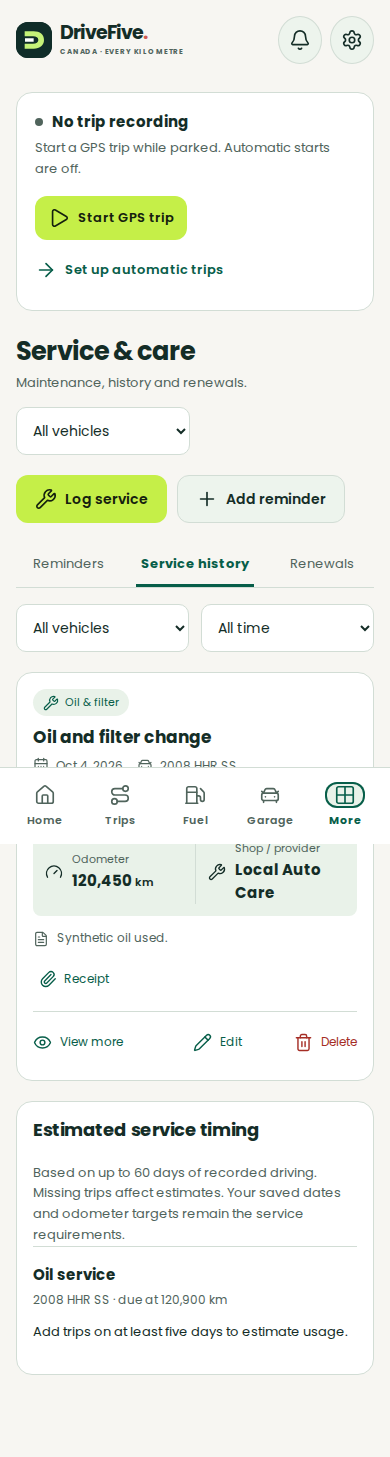
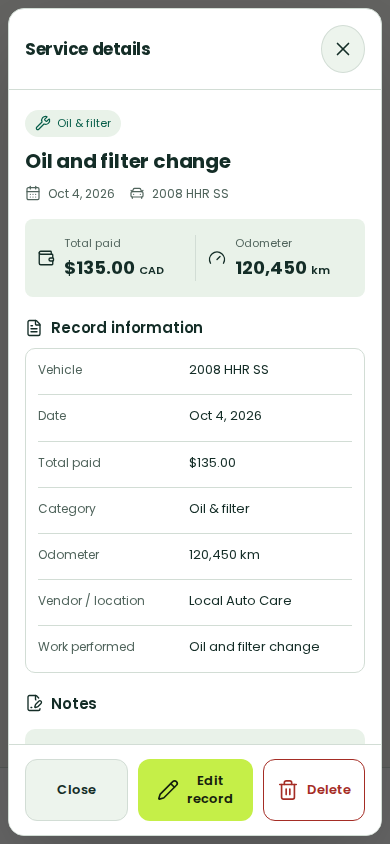
Service history shows the work performed, category, date, vehicle, cost, odometer and provider. View more opens the full record, notes and receipt. Reminder actions, confirmed intervals, snooze, hide and Undo work as before. Saving a service linked to a reminder still completes and advances that reminder.
Vehicle timeline, dashboard checks & forecasts
#One vehicle history
Open Vehicle timeline from Garage or More. Select a vehicle and period, then filter by record type or search. Trips, fuel, charging, services, expenses and documents appear together. View record opens its existing detail and edit actions. Documents open in the chosen viewer. The timeline does not store duplicate copies.
Check your actual odometer
Add an end-of-day dashboard reading under Odometer checks. The first reading establishes a baseline. A later reading compares dashboard movement against all current trips after the previous reading date through the new date. Missing trips, late entries and incorrect readings can explain differences. The app does not automatically change historical trips or the vehicle’s stored odometer. Edit incorrect records deliberately.
Use one whole-kilometre reading per vehicle per date. Later readings cannot be lower than earlier readings. The optional Home reminder can be postponed for 30 days; it is hidden during a trip. Annual vehicle readings remain available separately.
Estimated service timing
Service & care supplements kilometre reminders with estimated dates based on up to 60 days of logged driving. It needs driving on at least five dates over a period of at least two weeks, including recent driving. Missing trips and unreviewed mileage affect estimates. Already overdue work is labelled due now. Your saved date and odometer requirements remain authoritative; forecasts never reschedule reminders or invent manufacturer intervals.
Share a vehicle history with a buyer
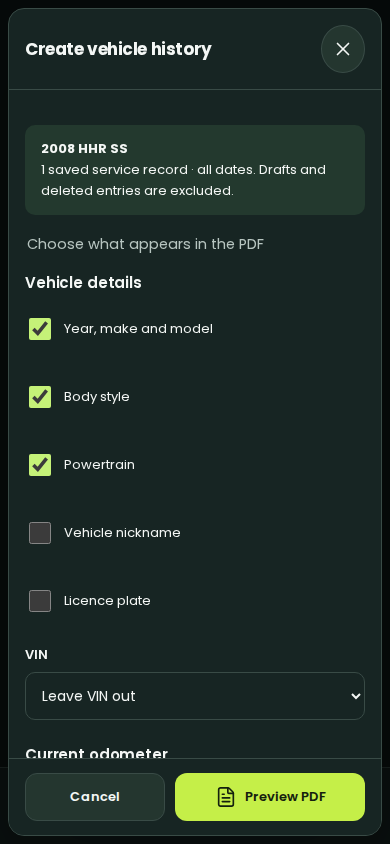
#Open Garage → More → Vehicle history beside a vehicle, or Reports & exports → Create vehicle history. Choose one vehicle, including an archived vehicle. The report includes all its saved service records across all dates, regardless of the current screen filters or list pagination. Drafts and deleted records are excluded.
Select the vehicle fields and optional shop, cost and service-note details. VIN can be omitted, shown in full or limited to its last six characters. Plate, nickname, notes, costs, provider and seller information start off. If including a current odometer, check the dashboard value and reading date, then confirm them. This report-only value does not change your garage.
Documents start unselected. Open each document for review, then select the ones to include. Check for personal details: selected originals are copied in full without redaction. PDF attachments include every page, flattened into the report; image orientation is preserved. The report labels linked receipts with matching appendix numbers. Unlinked inspection documents can also be included. A receipt label means an attachment is present, not that anyone independently verified the record.
Tap Preview PDF to view the actual generated document. Use Previous, Next, the page number and Zoom in to inspect every page. Share opens Android’s sharing chooser, Save PDF opens the file picker, and Print opens Android printing with page selection. Returning to the builder keeps the current choices so you can adjust and generate a new PDF.
The report uses white printable pages, chronological services, missing-value labels, coverage and generation dates, and page numbers. It is an owner-maintained history, not an inspection or certification. Empty histories and earlier cleanup are identified. Trip routes, saved places and unrelated records are not included.
Generation and preview work offline. There is no hosted public link. Up to 20 selected documents, 100 pages per PDF attachment and 500 report pages are supported; oversized or unreadable selections fail with a message rather than silently dropping pages. Temporary reports are available to the sharing provider for 24 hours. Saved or shared copies remain wherever you place them.
Reports & your data
Analytics, reports & exports
#Choose a scope
Use the vehicle and date filters before reading totals. A custom range includes the dates you choose. Analytics combines logged distance, business use, fuel, charging, service and other expenses for that scope. Missing entries produce incomplete totals.
Fuel consumption needs usable full-to-full intervals; energy efficiency and cost per kilometre depend on sufficient matching records. These are record summaries, not a live vehicle diagnostic or a promise of tax deductibility.
Download a report
In More → Reports & exports, choose the vehicle and dates. Every report card offers CSV and PDF: Mileage log, Fuel records, Charging records, Service history, Expense records and Summary report. Both formats include all matching records, including pages you have not loaded. Search and category filters from other screens do not narrow these reports.
- CSV: choose a folder in Android’s save dialog. The five record reports use one row per record. Summary CSV uses Section, Record, Date, Vehicle, Field and Value columns to include its totals, annual readings, complete trip ledger and notes.
- PDF: review the report, then tap Save as PDF. Select Save as PDF in Android’s printer list, then tap Save and choose a folder. Letter landscape is the default; you can adjust print settings.
The screen preview shows up to 20 rows per section to keep browsing lighter. The PDF and CSV contain every matching row. The CSV button inside a PDF preview downloads that same snapshot. Close the preview and generate another report after editing records or changing filters. Kilometres remain whole numbers; blank costs remain unknown rather than zero. No matching records produces an empty report.
Other exports
- GPX: retained GPS route points for a trip. Breaks mark recording interruptions. A route removed by retention cannot be exported again from the working garage.
- Full backup: the garage, retained routes, attachments, saved places, assignments, settings and drafts. Use this for recovery, not CSV.
Saved-place names are used for linked endpoints. Completed GPS trips offer an offline route preview and an optional online road map. Review business purposes, odometers and gaps before sharing records. Consult current Canadian recordkeeping requirements for your situation; the app does not file tax returns.


Sharing, backup reminders, schedules & restore
#Create and share a full backup
- Open Settings → Data & backups → Backups, or Manage backups in Reports.
- Finish an active trip. Choose Create and share backup. DriveFive creates and checks a dated ZIP containing the garage, retained GPS routes, receipts, saved places, settings, drafts and trip-correction originals.
- Review its creation time, size and record counts. Choose Share backup to open Android’s Share menu, or Save a file for the file picker.
- Choose a compatible installed destination, such as Google Drive, OneDrive or Dropbox, and finish its sign-in, folder and upload steps. Available destinations depend on your phone.
- Check the saved file in that app. In the backup help panel, I checked my saved copy records your confirmation and restarts the reminder interval.
Backups are unencrypted. Sharing gives the chosen app temporary read access to that file. The temporary copy can remain for up to 24 hours, subject to Android cache cleanup. Up to four temporary copies / 512 MiB are allowed; use an existing prepared copy or ordinary export if the limit is reached. There is no DriveFive cloud account, direct cloud integration or unattended cloud upload.
Creating a ZIP, choosing a destination, returning from another app or cancelling sharing does not prove an upload succeeded. DriveFive labels a chosen destination separately from your own confirmation; it cannot verify the cloud service. Closing the preparation panel does not cancel the copy. It remains available in Backups when ready.
Independent backup reminders
Choose Off, Weekly, Monthly or Every… days (1–365 whole days), then Save reminder. Monthly uses calendar months and the last valid day in a shorter month. Existing weekly and every-30-day preferences migrate without enabling previously disabled reminders. These dates are separate from automatic folder-backup success.
Allow notifications. The page explains when they are blocked. Back up now opens Backups; it never sends files in the background. Remind me later / Remind me tomorrow postpones the reminder by 24 hours. Android may delay checks for battery restrictions, and force-stop prevents background work until reopening. A delivered reminder schedules the next interval; only explicitly confirming a copy elsewhere restarts it based on a saved copy. Off disables further reminders and clears the notification.
Recover on a replacement phone
Download the saved ZIP from your chosen destination to the new phone. In DriveFive, use Restore backup and confirm replacement of its current garage. CSV/PDF reports are not recovery backups. Verify recent records, routes and receipts after restoring. Automatic logging, NFC, folder schedules, sharing reminders and route cleanup remain off until you enable them. Reselect a folder; another phone’s permissions cannot be restored.
Choose a destination
- Open Reports & backups → Automatic backups, or the Backup schedule shortcut in Settings.
- Select Use recommended folder. DriveFive proposes Documents / DriveFive / Backups.
- Android opens its folder picker. Choose Documents or the requested parent and approve access. DriveFive creates missing subfolders inside the area you approve, then checks it can write, read and remove its own files.
- Check the displayed folder. Choose another folder whenever you prefer a different supported destination.
Android’s approval is required once for persistent access. The app cannot approve it on your behalf. If Documents is unavailable or a provider cannot support background writes, choose another shared folder. An existing destination remains selected until you change it.
Set a schedule
Automatic backups are off by default. Choose Daily, Weekly or Monthly and a preferred local time. Weekly schedules add a weekday; monthly schedules add a day number. If the month lacks that date, its last day is used. Optionally require charging. Save the settings to apply them.
Android controls background execution and can delay the preferred time for battery, storage or other restrictions. This is not an exact alarm. The schedule is reconciled after reopening or reboot. Force-stopping the app can prevent background work until you reopen it. Clock and time-zone changes recalculate the next run.
An active trip takes priority. A scheduled backup waits until it finishes; automatic GPS monitoring can remain enabled between trips. Backups do not finish or disable recording for you. If the phone missed runs, one catch-up copy is attempted rather than a pile of duplicate copies.
Status and retained copies
The panel shows the destination, last successful backup, next preferred run and waiting or failure status. Back up now uses the approved destination. Manual export lets you choose an individual file location.
The saved file is reopened and verified before success is recorded. Choose the latest 3, 7, 14 or 30 scheduled copies to retain; the default is 7. After a successful replacement, only older files tracked as created by this schedule are eligible for cleanup. Manual exports and unrelated files are preserved. A failed copy does not replace the last successful date or delete the last good backup.
Reminders to save a copy elsewhere have their own controls above. A successful local backup does not reset them. Allow notifications for reminders and repeated scheduled-backup failure alerts.
Restore safely
- Finish active trips and turn Auto Trip and Android Auto starts off. Export a current backup if you need to preserve the garage you are replacing.
- Choose Restore, select a DriveFive backup and read the confirmation. Restore replaces the current garage; it does not merge two garages.
- After validation and restore, inspect vehicles, recent trips and receipts. Legacy supported DriveFive backups remain accepted.
- Reselect a backup folder and explicitly enable any desired schedule. Another phone’s folder permission is not restored. Enable NFC, Auto Trip and Android Auto starts separately when ready.
Where copies live
A shared document-folder backup normally remains after uninstall, whereas DriveFive’s internal data is removed. Reinstalling requires approving folder access again. A copy on the same phone does not protect against losing or damaging the phone; keep another copy somewhere you control.
Local folders work offline. A cloud-backed document provider must support persistent folder access and unattended reads/writes. Its connectivity, sync and retention are controlled by that provider, and completion in DriveFive does not prove a later cloud upload finished. No DriveFive cloud account is provided.
Backups are unencrypted and may contain precise routes, locations, receipts and vehicle identifiers. Protect access to the destination. If access is revoked, storage fills or a provider is unavailable, fix the issue and retry; the app keeps the previous good copies.

Drafts, validation & Undo
#Recover unfinished entries
Changed fuel, service and manual-trip forms, including edits to saved records, store local drafts as you work. The status above the form confirms when a draft is saved or reports an error. Merely opening a form creates no draft.
When leaving a changed form, choose Keep draft, Discard changes or Continue editing. Android Back and the close button use the same protection. Find kept drafts in Settings or More → Saved drafts; Home shows a shortcut when drafts exist.
Resume restores the chosen vehicle, fields and receipt reference. Drafts remain separate from mileage, costs and reports until you save successfully. If the original record changed since the draft began, DriveFive keeps the draft and asks you to review the current record instead of overwriting it. Discarding a draft leaves completed records intact.
Up to 30 drafts are kept within a bounded size limit. Save or discard older drafts if you reach the limit. Backups include drafts, but unsaved work can still be lost before a write completes or if app data is removed.
Form errors
Essential fields appear first. Expand Receipt & more details for optional information; collapsing it keeps your values. Errors identify or focus the relevant field and open its section. Correct the value and save again.
Undo deletion
Deleting a trip, fill-up or service record still asks for confirmation. An Undo bar then remains available for 30 seconds. Each deletion has its own Undo action. Its record, route and receipt references remain recoverable for that window.
After the window expires, deletion is permanent in the working garage. Undo does not reverse other edits or alter external backups. Restore a suitable backup only if you intend to replace your garage with that snapshot. Vehicle deletion and other unsupported record types do not have this Undo window.
Clean up old records
#Select and preview
- Open Settings → Data & backups → Clean up old records.
- Finish an active trip and turn off Auto Trip and Android Auto starts. Cleanup does not stop recording for you. Wait for a backup/storage operation or a 30-second Undo window to finish.
- Choose one vehicle or explicitly choose All vehicles. Select trips, fuel, charging, service and/or expenses.
- Choose Delete records before. The cutoff date itself is kept. Completed GPS trips use their ending date; manual records use their record date. Invalid or missing dates are protected.
- Preview the counts, affected vehicles, dates, attachments and estimated space. No records are removed by previewing.
Back up and confirm
Create backup first is selected by default. DriveFive creates a full recovery ZIP and opens Android’s file picker. Choose a destination and save. DriveFive reads the saved copy to verify it before offering the final deletion confirmation. Cancellation or verification failure leaves the records unchanged. For a cloud-backed destination, check the provider’s upload status separately.
If you uncheck backup, you must explicitly choose Continue without backup and then confirm the deletion. The last confirmation always shows the selected scope. If records change after previewing, cleanup is rejected and you must preview again. Deletion runs as one database transaction. There is no bulk Undo; restoring a full backup replaces the current garage.
What is kept and what changes
Vehicle profiles and current odometers, maintenance reminder schedules, dashboard readings, saved places, NFC associations, settings and unfinished drafts are kept. Records being edited in saved drafts are protected. Linked trip corrections are removed only as a complete eligible group; a group that spans the cutoff stays protected.
Routes and receipts belonging only to deleted records are removed. Shared attachments and standalone documents remain. A compact last-service reference by category can remain on the vehicle to preserve a baseline; it is not a full service history. Reports use retained history and display a cleanup notice. Fuel calculations do not connect across deleted fill-ups.
After deletion, DriveFive attempts to reclaim unused database pages. It can report that reclamation must be retried from Storage if free space is insufficient; that does not undo successful deletion. The preview is an estimate. Existing backup archives, exports and files shared outside the app are not deleted. Restoring an older backup can bring purged records back. Record cleanup is optional and never runs on a schedule.
Keep phone storage small
#Open Storage & performance to inspect records, route data, receipts and temporary space. The APK is only part of total app storage: your photos and accumulated journeys determine later growth.
Routine efficiency
DriveFive stores route data compactly and can optimise receipt photos. Maintenance is deferred around recording where needed. Database space can be reclaimed after deletions, but the figures may not fall immediately while temporary recovery or other work is active.
Optional route retention
Choose how long to retain detailed routes only if you are comfortable losing older route shapes. The default keeps them. Cleanup protects trips still needing review. It preserves trip totals, dates, categories and endpoint names while removing eligible detailed points.
GPX and route viewing are unavailable for a trip whose detail has been removed. A later backup contains only detail still present at the time it is made. Export a backup with routes before enabling cleanup if you may need them later.
Receipt quality and copies
Optimise photos when appropriate, then check that receipts remain readable. Avoid importing the same document repeatedly. Choose a practical scheduled-backup count and occasionally review manually exported copies, which DriveFive does not automatically remove.
Temporary transfer files are cleaned up. Drafts and Undo recovery are bounded. Do not use Android Clear storage as a cleanup shortcut: it removes your working garage. Make and verify a backup before uninstalling or clearing app data.
Help & troubleshooting
Responsive speed & larger garages
#Live speed
While a recording trip card is visible on Home or Trips, DriveFive requests GPS readings and refreshes the speed display about once per second. The phone and reception determine when a real reading arrives. Speed stays in whole km/h; paused, unavailable or stale speed shows a dash. After several reliable stopped readings, the card holds 0 through isolated GPS drift. Consistent movement releases that stopped state, including slow crawling. Normal moving-speed calculation and the approximately one-second visible refresh are unchanged. Weak reception alone is not proof that the vehicle has stopped.
Leaving the card, opening a form, switching apps or locking the phone returns active GPS recording to its normal two-second interval. Waiting for a trip uses five seconds. Extra visible speed readings do not automatically add extra saved route points. Auto Trip, NFC and Android Auto timers retain their existing rules.
Browse older records
Fuel, charging, service, expense and document histories, plus Vehicle timeline, load 50 records at a time. Tap Load 50 more to go further. Search examines the complete matching history, including records you have not loaded. Going back keeps your filters and loaded position.
Totals, Insights, CSV/PDF reports and full backups include the complete vehicle and date range. Full-to-full fuel consumption still uses earlier fills needed to establish an interval; blank amounts remain unknown rather than free fuel. Searching a list does not narrow the period totals or CSV exports.
Find a receipt
Entry forms initially offer up to 50 recent receipts for their vehicle. Use Find an older receipt or Load 50 more receipts. An already linked receipt remains selected even when older than the first page. Changing vehicles shows only that vehicle’s receipts.
Receipt quality and memory
Camera and file attachments are processed from a temporary private file, and image rotation and resizing share one output image. Smaller new photos still use the same 2,400-pixel JPEG quality setting; turn this option off in Storage to keep original bytes within the 8 MB attachment limit. PDFs stay unchanged. Scanning remains optional and you review suggestions before saving.
These changes reduce unnecessary work. Actual RAM, battery and GPS behaviour depend on the phone, WebView and receipt sizes. A full report or backup still processes the selected history.
Troubleshooting & installation
#APK will not open or install
This release supports Android 8.0 and later. Download the actual .apk file fully, open it from Android’s Files or Downloads app, and allow that trusted app to install unknown apps if Android asks. A ZIP of source code is not the installer. Device policies or security controls may prohibit installation.
An update must use the same application identity and signing certificate as the installed copy. Do not uninstall first simply to work around an error: that removes internal data. Save a full backup before considering reinstalling. Keep the exact Android error message if installation still fails.
GPS does not start or misses distance
Check precise location, phone Location services and the app’s recording status. Move to an area with a clearer sky view, reopen DriveFive, and use Resume if interrupted. Check Android battery restrictions. Review the trip against the dashboard; GPS gaps cannot be reliably reconstructed.
NFC does not respond
Check the phone and app NFC switches, unlock the phone, locate its antenna and test the tag away from metal. Wait past the repeated-tap cooldown. Reopen NFC setup to inspect the assignment. Finish or cancel any tag-writing session before normal use.
Backup has not run
Check that its schedule is enabled, the preferred time is due, the phone meets any charging requirement and no trip is active. Reopen the app after a force-stop, verify folder access and available space, then try Back up now. Android may delay background jobs. A failure does not mean an older good backup is lost.
Missing or unexpected records
Check demo mode, the vehicle selector, date range, category and review-only filter. Look in Saved drafts for unfinished entries. Undo is available for 30 seconds after supported deletion. Restore replaces the garage, so read its confirmation carefully.
This guide is included with DriveFive 1.24.0 and is available offline.