
Sort the source records before entering anything
Put the month's repair invoices, work orders and parts receipts together, then separate them by vehicle. Check the make, model, licence plate, VIN or another reliable identifier where one appears. A receipt filed under the wrong vehicle can create a believable but false maintenance sequence.
- Completed shop invoice: use it to record work that was actually performed.
- Estimate or quote: keep it as a document, but do not present proposed work as completed maintenance.
- Parts receipt for work you did yourself: record the parts purchase and describe your own work accurately.
- Inspection report: keep the findings distinct from repairs unless the document confirms that the repairs were completed.
- Warranty or no-charge visit: record the completed work and use zero only when the amount you paid was actually zero.
Repair-invoice rules vary by province. Ontario and Québec consumer pages both illustrate why a detailed invoice is useful: their lists include vehicle identification, date, odometer, repairs, parts, labour, total and warranty information. Use the rules for your province when a legal requirement matters.
Collect the facts that make a service entry useful
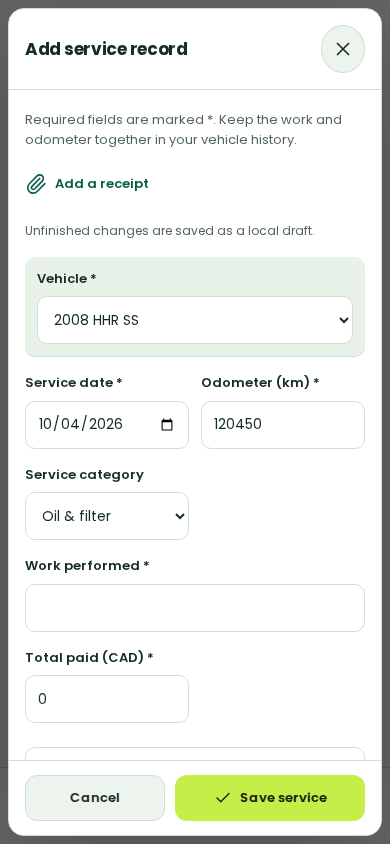
A receipt image is easier to find later when the important facts are also entered as searchable vehicle data. Before saving, read the full document and identify what it actually supports. Do not copy a generic invoice heading when the itemized work provides a clearer description.
| Field | What to record |
|---|---|
| Vehicle | The exact vehicle that received the work, confirmed from the invoice or your contemporaneous notes. |
| Date | The date the service was completed, rather than the estimate date or appointment-booking date. |
| Odometer | The whole-kilometre reading recorded at the visit or another reading you can support for that service date. |
| Work performed | Specific completed tasks, such as oil and filter changed, tires rotated, or front brake pads replaced. |
| Total paid | The actual CAD amount for the entry, including zero only for genuinely no-charge work. |
| Provider and notes | The shop when applicable, plus warranty, part or follow-up details that will help you understand the entry later. |
Log the completed service in DriveFive
- Open Service & care and choose Log service.
- Confirm the vehicle, actual service date and whole-kilometre odometer.
- Choose the service category and describe the completed work in specific terms.
- Enter the total paid in CAD. Use zero for no-charge work, not for an unknown amount.
- Add the shop, notes and receipt when they help explain the service.
- Review the entry and attachment, then save the service. An unfinished draft is not completed maintenance.
A description such as “Engine oil and filter changed; tires rotated” will be more useful than “regular maintenance.” If one invoice covers several tasks completed during the same visit, list those tasks together unless you have a clear reason and itemized amounts for separate entries.
Attaching a receipt keeps a local copy with the record. Photograph the entire receipt clearly or choose the existing file, then reopen it and confirm that the vehicle details, date, work and amount remain readable.
Worked example: one invoice, one clear service visit
Suppose a sample invoice shows that a hatchback received an oil and filter change plus a tire rotation on November 3, 2026, at 84,260 km. The total paid was $164.70 CAD. The invoice also lists the shop and an oil grade.
| DriveFive field | Sample entry |
|---|---|
| Service date | November 3, 2026 |
| Odometer | 84,260 km |
| Category | Oil & filter |
| Work performed | Engine oil and filter changed; tires rotated |
| Total paid | $164.70 CAD |
| Optional details | Shop name, oil grade, follow-up note and attached invoice |
The category gives the visit one organizing label; the work description preserves the second task. The receipt remains the supporting document. If the shop recommended brake work but did not perform it, keep that recommendation in a note or separate inspection document instead of listing the brakes as completed.
Describe do-it-yourself work and mixed receipts honestly
For owner-performed maintenance, state what you did without implying that a repair shop inspected or completed it. For example: “Replaced engine air filter at home using part shown on attached receipt.” Use the actual date and odometer from the work, the amount you paid for the relevant parts, and notes for the part number if it is useful.
- Do not enter the retailer as the repair provider when it only sold the part.
- Do not call an estimate, recommendation or purchased part a completed repair.
- If a store receipt contains unrelated purchases, use the supported amount for the vehicle item only when it is clearly itemized.
- If you cannot separate a mixed total reliably, keep the receipt and note the limitation instead of guessing an allocation.
- Keep inspections, maintenance and repairs described in their own terms.
The service log is owner-maintained. Its value comes from accurate descriptions and supporting records, not from making every entry sound like professional work.
Keep readable originals and a recovery copy
DriveFive keeps a local copy of an attached receipt. Photo optimization can reduce storage use, so inspect small print, dates, amounts and warranty terms after attaching the image. Keep the original document separately whenever its original quality, warranty value or recordkeeping purpose matters.
For work-related vehicle expenses, the Canada Revenue Agency says maintenance and repairs can be among motor-vehicle expenses when the applicable conditions are met, and supporting receipts are required. That does not make every repair deductible. Keep tax records according to the current rules for your own employment or business situation.
- Review the saved service entry and open its receipt.
- Keep the paper original or source PDF in a location you control when needed.
- Create a full DriveFive backup to preserve the garage and attachments.
- Save or share the backup to a compatible destination and confirm that the file exists there.
Review the service sequence, not just individual receipts
After entering a batch, open Service history and read the records in sequence. Check that odometers move forward, dates match the source documents, costs are attached to the correct vehicle and descriptions make sense beside earlier work. A repeated service may be legitimate; it can also reveal a duplicate entry.
- Open View more to compare the full description, provider, notes and receipt.
- Correct a transposed odometer or wrong vehicle using the source record.
- Leave unknown information unknown rather than filling gaps from memory.
- Check that drafts were completed only for work that actually happened.
- Keep later recommendations distinct from the completed visit.
This review produces a service log that is useful for your own maintenance decisions first. It also reduces cleanup if you later need a repair summary, expense record or vehicle history.
Prepare for a later vehicle-history report
When you eventually create a vehicle-history PDF, DriveFive uses the saved service records for the selected vehicle. It does not reconstruct missing information from a receipt pile. Consistent entries made after each visit give the later report clear dates, odometers and work descriptions.
- Confirm that each completed visit is saved under the correct vehicle.
- Open each attachment and check for personal or payment information before selecting it for another person.
- Use Garage → More → Vehicle history or Reports & exports → Create vehicle history when you are ready.
- Preview every page before saving, printing or sharing the PDF.
The resulting PDF remains an owner-maintained history, not an independent inspection or guarantee. Organizing the receipts now makes the record clearer; it does not change what the documents prove.
USE IT IN DRIVEFIVE
Your next step
Open the matching guide for the exact steps in the app.
- Add and review service records
- Attach and manage receipts
- Create and preview a vehicle history
- Back up records and attachments
Sources & app documentation
- Ontario — Car repair shops: your rights
- Office de la protection du consommateur — Repair invoice requirements
- Canada Revenue Agency — Employment Expenses 2025
- Agence du revenu du Canada — Dépenses d’emploi 2025
- DriveFive — Maintenance and service history
- DriveFive User Guide — Service records, receipts and vehicle history
Published by DriveFive · App instructions checked against version 1.27.0. Read our editorial approach.